
Computer Freezing and Hanging Issues: Reasons and Fixes for Beginners
Introduction
It is very annoying when we use a computer and it freezes or starts hanging. Whether you are doing homework, watching videos, editing photos, or just casually browsing the internet.
For a beginner computer user, this may lead to panic. “Oh no! My computer is broken! All my hard work is gone! I’ll never recover!”
Luckily for you, that’s not the case. Most of the time, a computer freezing or hanging is caused by minor issues, such as simple software glitches.
By learning what those causes are, as well as fixing them, you can keep your computer running smoothly for a long time.
In this article, we will learn about what computer freezing and hanging is, what its causes are, how they affect you, and some quick fixes for minor issues.
What Does Computer Freezing or Hanging Mean?
When a computer locks up and stops responding to human input, it is referred to as computer freezing or hanging.
It is important to differentiate between a slow computer and a frozen/hanging computer.
A slow computer is still somewhat responsive but simply takes longer than normal. Examples include programs taking 20 to 30 seconds to load, or the computer not responding right away when you click on something.
A frozen computer, however, is non-responsive. It might display a frozen screen, the mouse may stop responding, or certain programs may display the message “Not Responding”.
An example of a frozen computer would be while you were in the middle of working on an important presentation for college, the computer freezes up and refuses to do anything else besides sit there.
You click on it, but it doesn’t respond. This is a prime example of a frozen computer.
A basic understanding of the difference between a slow computer and a frozen one is essential to understanding computer freezing or hanging.
Common Signs of a Freezing or Hanging Computer
A freezing computer typically shows certain signs before completely freezing. These can include the following:
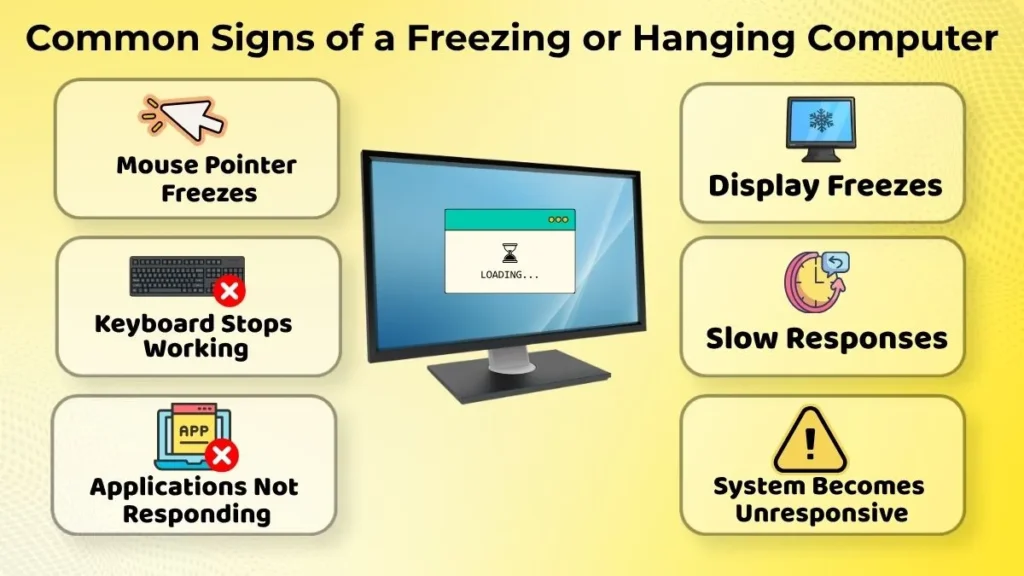
- The mouse pointer freezes
- The keyboard’s keys are not working
- Applications become unresponsive
- The display freezes on one screen
- The responses from the apps are slow
- The system becomes unresponsive to the point that the user cannot perform anything.
Sometimes, these signs only occur occasionally, and sometimes, they are constant, showing that something is wrong.
By understanding these signs, you can get ahead of the problem and know what to do in the future to prevent them.
Common Causes of Computer Freezing and Hanging
There are several possible reasons why a computer freezes. Some common factors of computer freezing and hanging are as follows:
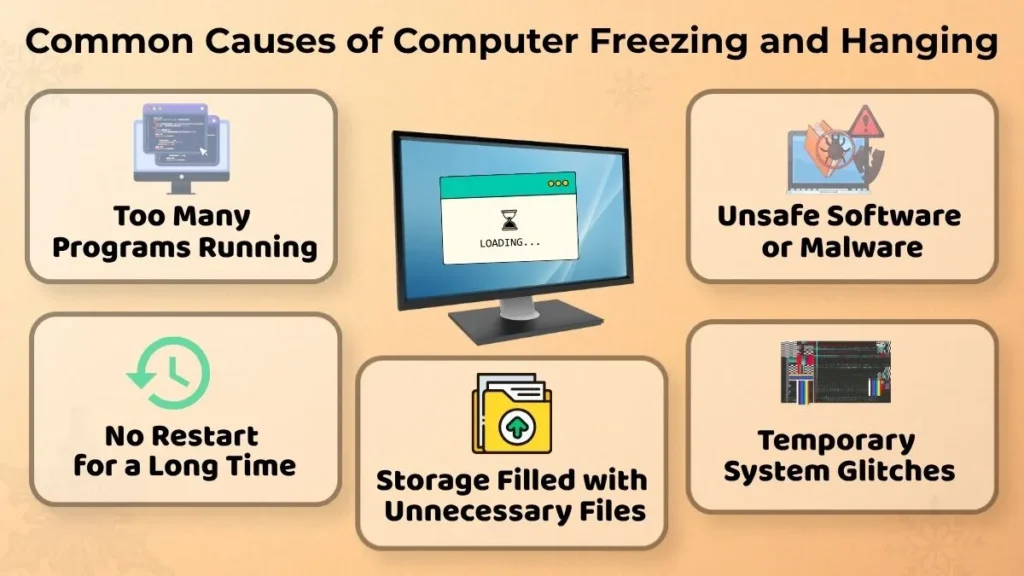
Too Many Programs Running
Every program that is opened uses a specific quantity of memory and computing resources. Having too many applications open at one time can overload the computer, making it freeze until some are closed.
For example, if the user is trying to do video editing while also listening to music, downloading large files, and having multiple browser tabs open, it is common for the computer to freeze, especially if it is not a high-end machine.
Long Periods Without Restarting
Many people tend to forget to reboot their computers every now and then.
During the time that the computer is on, numerous processes start and stop. Some processes can linger and take up memory even after their intended function has been fulfilled. Restarting the computer can clear these processes, as well as give the system an opportunity to refresh itself.
Storage Filled with Unnecessary Files
As the computer is used, it accumulates unnecessary files, such as downloads and old photos and videos. Large numbers of these files can take up a significant amount of space, which can affect the computer’s performance. While this is not a direct cause of freezing, it can contribute to it.
It is important to delete these files every now and then to ensure that the computer has enough space.
Unsafe Software or Files
Malware can cause numerous issues on a computer, and one of the most common ones is freezing. Sometimes, unwanted software can also cause the computer to freeze, especially if it is poorly designed or incompatible with the operating system.
To avoid unwanted software, it is important to only download applications from trusted sources.
Temporary System Problems
Sometimes, the computer will freeze due to a system glitch. This can occur if an application malfunctions or Windows encounters an error.
System glitches are common, especially when the computer is doing multiple tasks at once.
Effects of Frequent Freezing Problems
A computer that sometimes freezes is not something to worry about. However, if the PC freezes quite often, it may be causing you some trouble.
- It might lower productivity
- You could be anxious
- You may lose your work if it freezes before saving
- Computer freezing can lead to loss of productivity and time
If the computer freezes multiple times and you have to keep restarting the PC, you would be wasting time. If you were doing your homework or a project and the PC froze right then, you would have to save your work once more after you unfreeze it. Computer freezing also causes stress to most people, especially those who are just learning how to fix the PC.
What Should You Do When the Computer Freezes?
If the PC ever freezes, try not to panic and do the following steps.
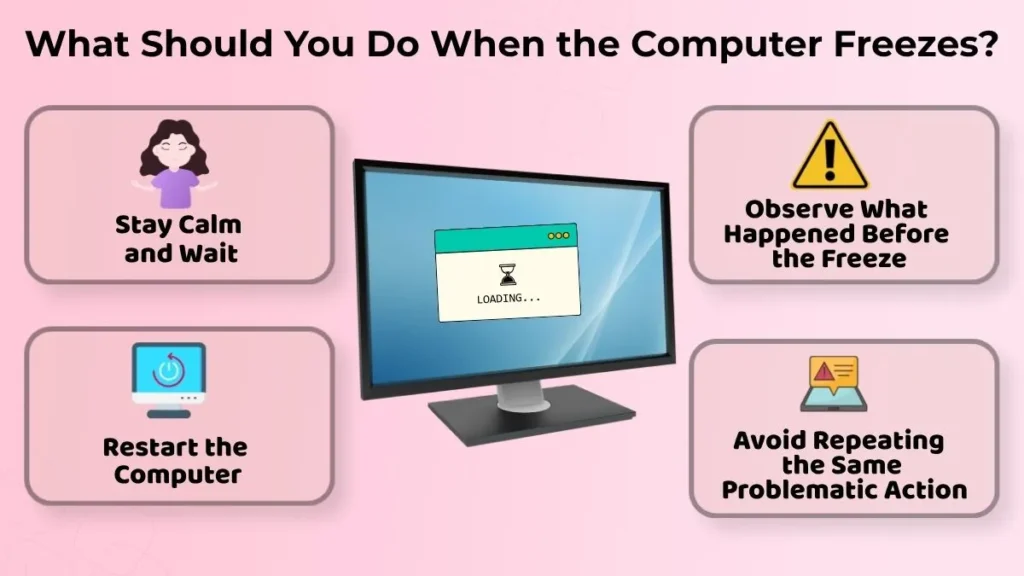
Stay Calm and Wait
Sometimes the computer simply needs a little extra time to complete a task. Usually you should wait a couple of minutes before doing anything else. Trying to click the mouse or hitting keys on the keyboard before it unfreezes by itself won’t usually help.
Restart the Computer
It might be better to restart the computer if it has been frozen for longer than a few minutes.
Most of the time, restarting it gets rid of any glitches or errors that were causing it to freeze.
Observe What Happened Before the Freeze
You should try recalling what you were doing right before the PC froze.
This could be something like:
- Opening a file
- Installing a program
- Inserting a USB
- Running multiple programs
- Trying to download something from the Internet
Whatever it was, it could have triggered it to freeze.
Avoid Repeating the Same Problematic Action
If the computer freezes whenever you perform a particular task, avoid repeating that action until you identify the cause. This can help you determine whether a specific program or file is triggering the problem.
Simple Habits to Prevent Freezing Problems
Although most of the time, a computer will freeze eventually, there are ways to prevent it from freezing as much.
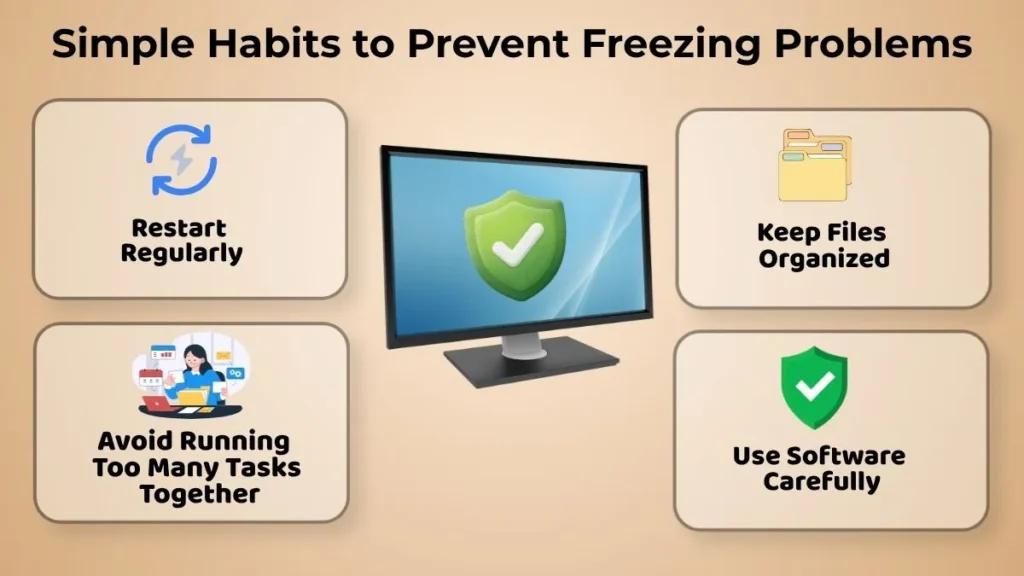
Restart Regularly
If you restart your PC every few days, it will reduce the chance of it freezing.
This is one of the easiest ways to avoid the computer freezing.
Keep Files Organized
If you delete some files you don’t need and empty the Recycle Bin regularly, your computer will thank you.
It is also usually a good idea to organize your files.
Avoid Running Too Many Tasks Together
It’s always a good idea to try not to run too many programs at the same time. If you are trying to edit a Word doc, there usually isn’t a need to have 20+ tabs open on chrome and several other programs running, especially ones that don’t seem to need to be opened. If you are running less programs that need to be run, it can reduce the chance of the computer freezing.
Use Software Carefully
Try Not To Run Any Programs You Don’t Really Need.
If you only keep the ones you really need, it can reduce the chance of the computer freezing.
Only install programs you need, and only from reliable websites. Try Keeping Them Updated Too.
Common Beginner Mistakes During Freezing Problems
Sometimes when a PC freezes, there are things that some beginners do that can make it more difficult to fix it, and may even make it worse. Here are some things some beginners do when a PC freezes:
- Pressing the mouse repeatedly
- Hitting random keys over and over
- Shutting it off immediately after it freezes
- Changing some PC settings
- Assuming that it will always keep freezing
It is best to know what not to do when it freezes, and avoid doing them.
When Should You Seek Professional Help?
Although most of the time, computer freezing can easily be fixed alone, there are times when it’s best to get it repaired by a professional.
Some situations to get it professionally repaired would be:
- When it freezes almost every day
- It keeps crashing/rebooting
- The computer makes unusual noises or shows signs of physical damage
- Your work is being disrupted frequently
- None of the methods used to keep it from freezing worked
If none of them seem to be working, a professional can always see if there are deeper reasons that are causing it to freeze.
Conclusion
Computer freezing/hanging is something that almost everyone goes through at least once in their life. It can be really annoying, but it most likely won’t always be something that will stop you from working.
Sometimes the computer freezing is usually caused by having too many programs running at once, leaving it on for a long period of time, not cleaning files, or some random error that will clear itself up eventually. With proper computer habits, patience, and regular maintenance, almost anyone can prevent the computer from freezing/hanging most of the time.
Some ways to prevent computer freezing are: restarting it every once in a while, keeping your files clean, not running too many programs at once, and only installing programs you need, and only from reliable websites.