
Common Keyboard, Mouse and Display Issues Explained for Beginners
Introduction
A computer is much easier to use when its keyboards, mouse, and displays are all working fine. Each of these components makes tasks such as typing, clicking, launching applications, and viewing things on the screen possible. Whether one is writing an essay or watching a movie, everything a user does on a computer involves all these three devices.
Sometimes, a few issues can arise while using them. The keyboard may stop responding, mouse could stop moving, or the monitor might get dark. Whatever the case may be, these types of malfunctions can be frightening, especially to someone who is a beginner.
Luckily, most of these problems are typically not as serious as they may seem. In most cases, a quick inspection or minor test can determine the cause of the issue.
In this article, we will discuss some of the most common problems that pertain to keyboards, mouse, and displays, and provide some beginner-friendly advice for dealing with them.
Giving an Explanation to Why Devices Fail?
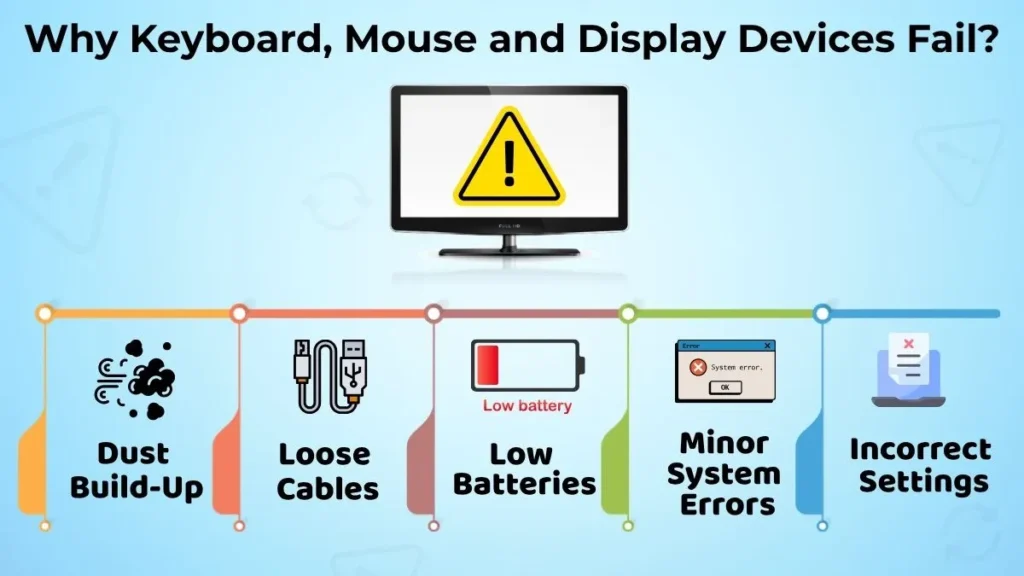
To be clear, computer accessories frequently have problems. In actuality, these devices frequently experience a variety of failures that are simple to resolve.
Computer peripherals are used extensively throughout the day. There is also a chance of dust accumulation on them after some time. In addition, cords can become disconnected, batteries can run out of power, or some other issue can occur. Sometimes, a minor error in a computer’s system can also cause one or more of these tools to malfunction. This can occur when one makes an unintentional change in computer’s settings.
As can be seen, there are numerous reasons why a keyboard, mouse, or display may stop working. Nevertheless, one should take a deep breath and try to inspect the issue before jumping to any conclusions.
Common Keyboard Problems
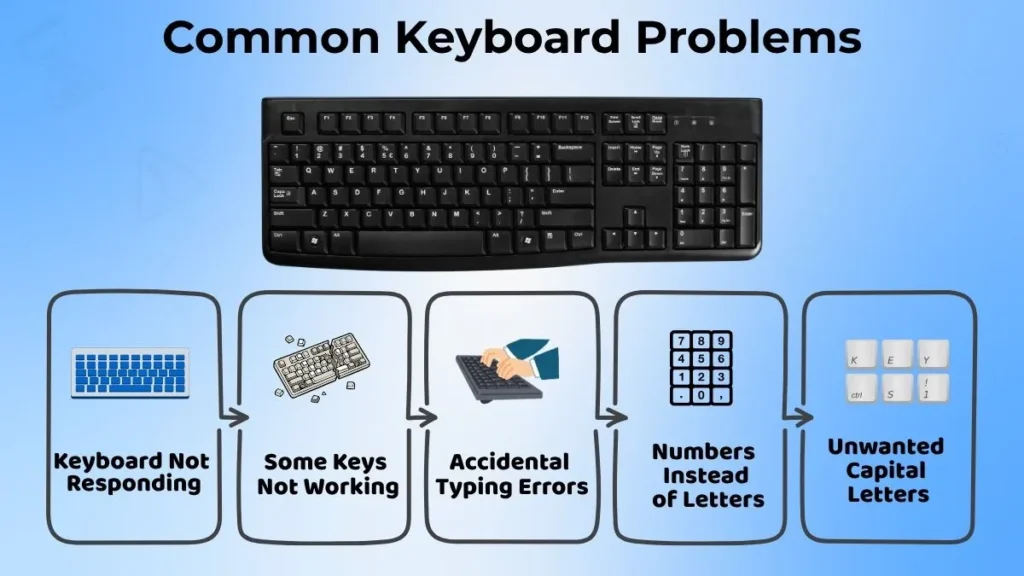
Keyboard Not Responding
One of the most common issues is that the keyboard stops responding to input. It can be really annoying when you are in the middle of typing an email, assignment, or searching for something online.
Sometimes it’s as easy as a loose USB cord or a small technological glitch. It can also happen when the keyboard is wireless and the batteries are running low.
Some Keys Aren’t Working
It can happen that some keys on the keyboard aren’t working while the others are. Possibly some of the keys are dirty underneath or they are broken from some sort of accident. It doesn’t always mean that the whole keyboard has to be replaced if only a few keys are malfunctioning. Testing which keys are functional and which are not might be useful.
Accidental Typing Errors
Sometimes the keyboard is working, but it types something that you weren’t intending to type.
It could be that it capitalizes letters when it shouldn’t or that it types numbers instead of letters. Another possibility is that it types entirely different terms from what you are attempting to input. This can usually be fixed by simply figuring out what is causing these accidental typing errors.
Simple Tests for Keyboard Repair
If the keyboard is not working correctly, try these basic tests:
- Verify that the keyboard is properly connected
- Restart the computer once again
- Check for any dust or dirt on the keyboard
- Make sure the batteries are not dead if it is a wireless keyboard
- Check to see if the keyboard cable is secure
These minor fixes can usually fix everyday keyboard issues.
Common Mouse Issues
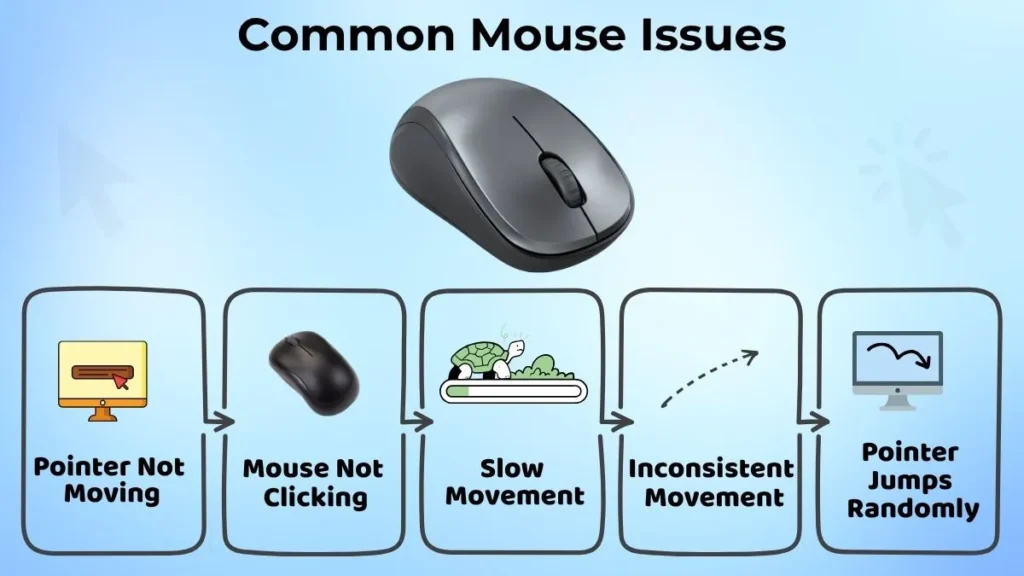
Mouse Pointer Won’t Move
If the mouse pointer won’t move at all, it can be really difficult to use the computer. Clicking on it will not choose or open anything.
It could be a simple fix such as reconnecting the mouse or plugging it in again. It could also be that the batteries are dead if it is a wireless mouse.
Mouse Won’t Click
Sometimes the mouse pointer will move, but it won’t click. The left and right click buttons on the mouse can stop working, making it impossible to open or select anything.
A few basic troubleshooting techniques normally solve this problem.
Mouse Moves Slowly or Inconsistently
If the mouse moves really slowly or inconsistently, it can be hard to control. It might jump around the screen randomly or it might not move at all. This is usually caused by the surface that the mouse is being used on.
Glass and extremely smooth surfaces make it difficult for it to track. It also doesn’t track as well if there is a lot of dust on the mouse. It is helpful to use the mouse on a mouse pad and to make sure that the mouse itself is clean.
Simple Ways to Identify Mouse Problems
When encountering mouse issues, the following procedures are recommended:
- Connect the mouse again
- Replace or charge batteries if a wireless mouse is used
- Switch the computer off and back on
- Use the mouse on a clean and flat surface
- Check if all connections are secure
These procedures are typically enough to resolve any mouse issues.
Common Display Issues
Blank or Black Screen
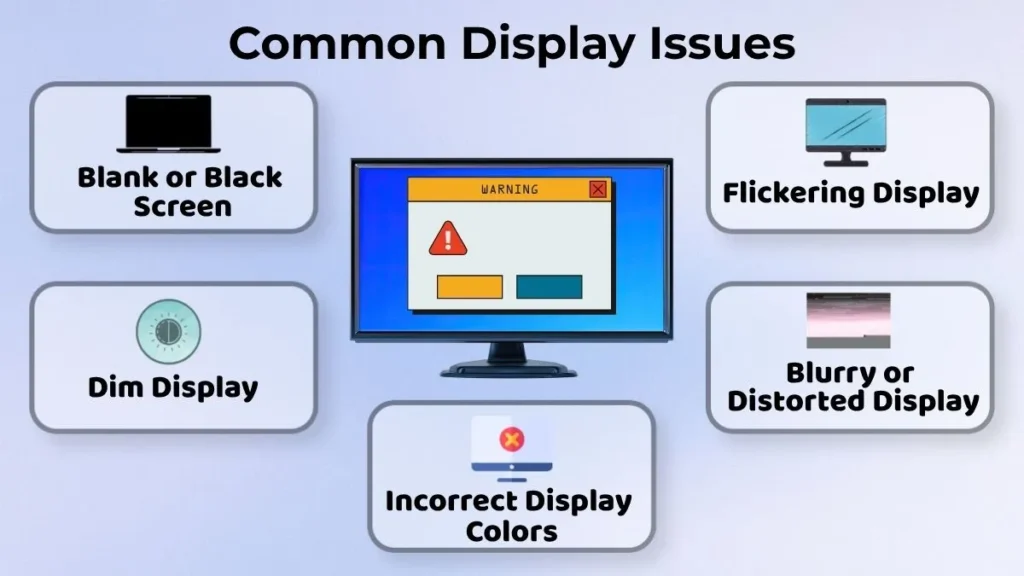
One of the most common display issues that may worry a beginner user is a blank or black screen. Essentially, the screen does not display any image even though the computer seems to be working fine.
Although this issue may be related to serious hardware malfunctions, it is usually a minor problem such as a disconnected display cable, a turned-off monitor, or a simple start-up issue.
Therefore, it is essential to try some simple solutions to see if the issue can be resolved before contacting a professional.
Dim Display
A dim display is a common occurrence that may happen due to various reasons.
Most of the time, this problem is resolved by simply adjusting the display settings. If the display looks dark, try to change the brightness settings to see if the display becomes normal.
Flickering Display
A flickering display can be annoying to look at and make using the computer challenging.
The cause of this issue can vary, but it is most commonly a minor software issue or a problem with the display settings. Although a constantly flickering display should not be ignored, occasional flicker is most likely not a serious issue.
Display Not Working Correctly
When the display does not seem to be working correctly, the text and images on the screen may appear blurry, stretched, distorted, or in incorrect colors.
It is most commonly a problem with the display settings or a disconnected display cable.
Simple Checks for Display Issues
If a display issue occurs, the following procedures are recommended:
- Check if the monitor is turned on
- Check the display brightness
- Make sure that the display cable is connected
- Restart the computer
- Check if the monitor is receiving electricity
These simple procedures can help troubleshoot most display issues.
Common Beginner Mistakes While Dealing With Devices
If a device stops working properly, an inexperienced person might do several things wrong while trying to troubleshoot the issue.
- They could press the keys too hard
- Disconnect wires roughly
- Change some settings they do not understand
- Frequently disconnect and connect the device
- Believe the device is defective
Instead, one should approach the issue systematically and attempt to resolve it step-by-step.
Basic Tips for Troubleshooting Issues With Input and Display Devices
First, it is recommended to restart the computer to see if the error goes away.
This method is universal and often works if a device malfunctioned randomly.
Second, one should ensure the computer accessories are connected correctly.
Several issues occur because the devices are not connected properly, so one should check all the cords and connections to rule out this possibility.
Third, using the computer accessories regularly and cleaning them on a regular basis ensures they work properly.
One should use a soft cloth to wipe all the devices to remove any dust that has accumulated on them.
Fourth, one should be gentle with all the computer accessories as they are made to last but do not have a tremendous amount of durability.
One should avoid pulling the cords out abruptly, hitting the keyboard with forceful motions.
When Should You Seek Professional Help?
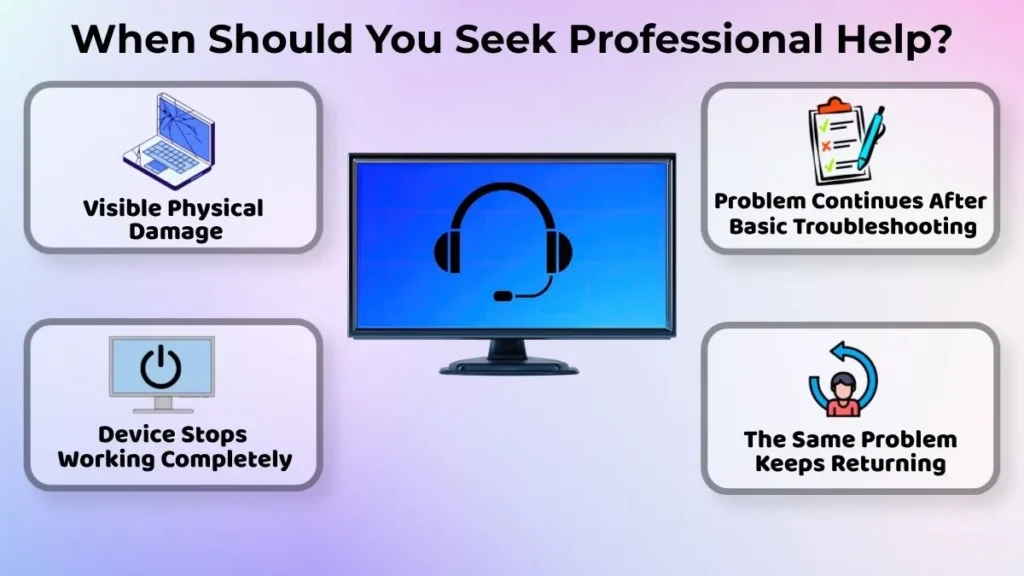
- The device has visible physical damage.
- The keyboard, mouse, or monitor has stopped working completely.
- The same problem continues even after basic troubleshooting.
- The issue keeps returning again and again.
Professional support can help identify problems that cannot be solved through simple checks.
Maintenance of Computer Accessories and Its Importance
Computer accessories require minimal maintenance, and they tend to reduce the occurrence of some issues significantly if they are frequently cared for.
Proper care ensures the accessories last longer, perform better, and rarely encounter problems.
It also helps to prevent some issues from occurring and makes the computer usage less stressful.
Simple measures like cleaning and being gentle while using the accessories would prevent some future problems.
Conclusion
Issues with the keyboard, mouse, and monitor are the most common problems that computer owners experience, especially unskilled users. Fortunately, most of them are relatively easy to resolve because they usually do not have serious causes.
While the problems might appear intimidating, they can be solved by checking the cord connection, ensuring the keyboard, mouse, and monitor are working properly, and restarting the computer.
After learning the typical issues and ways of addressing them, one will be able to use a computer confidently and troubleshoot some simple malfunctions on their own.
The keyboard, mouse, and monitor will rarely malfunction if they are regularly cleaned and used correctly.