
Overheating Problems in Computers: Causes, Effects and Prevention
Introduction
Have you ever noticed your laptop is running abnormally hot after watching a video, during an online meeting or while having multiple tabs open? Some heating is normal because any computer generates heat when its parts are in use. However, if the temperature rises too high and the cooling system cannot bring it back to normal, laptops and computers will malfunction.
A computer may slow down, freeze, restart itself, or just shut down when it becomes too hot. Sometimes, the only indication that the device is running hotter than normal is that the cooling fan makes more noise than you are used to.
Luckily, there are several common reasons why a computer may overheat. Recognizing them can help you prevent serious malfunctions and maintain your device better.
What Is Computer Overheating?
Computer overheating is a situation when a computer’s internal temperature rises far above average levels. Computer components generate heat during operation, while the cooling system, including fans and vents, helps remove that heat. As long as the amount of heat the computer generates is stable and well within the limitations, it won’t show any signs of computer overheating.
When a computer produces more heat than its cooling system can remove, overheating can occur. For example, if your laptop starts to feel significantly hotter than usual when you open a browser or begin to experience freezing, it is time to check its vents. It’s normal to feel warm when watching films, but it’s not normal to get really hot while performing daily duties.
Basic Symptoms of a Computer Overheating
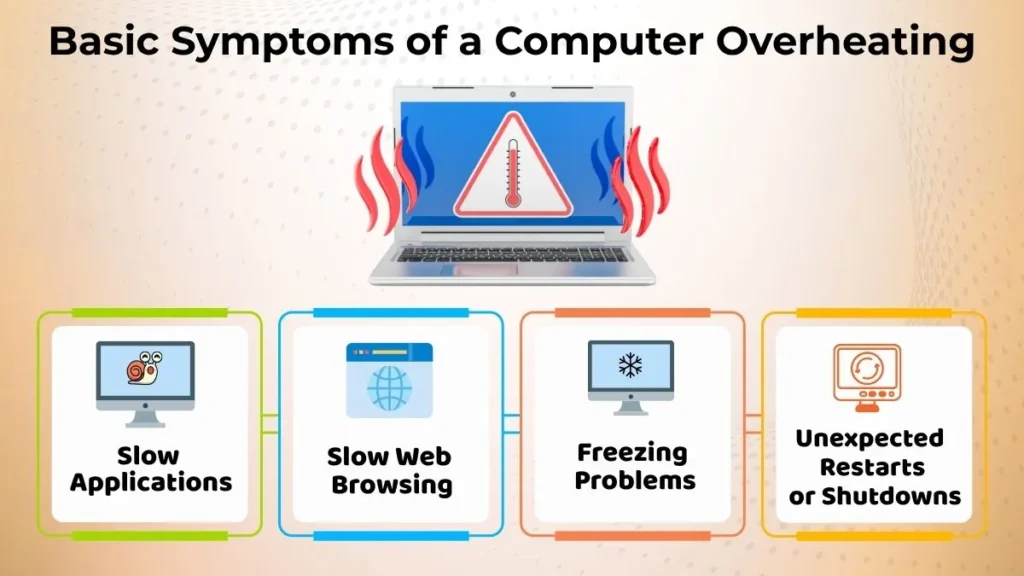
It is crucial to make the distinction between a computer that simply feels warm and one that is potentially malfunctioning. One sign is excessive heat, which may make the computer feel abnormally hot to the touch. Some of the other signs are equally simple to recognize.
The most common ones are:
- Applications taking longer to start and respond
- Web browsing is getting slower for no obvious reason
- Freezing, unexpected restarts, or sudden shutdowns
Even while each of those indicators may have a distinct cause, their existence along with unusually high temperatures suggests that something is wrong. If your computer seems hotter than usual and continues shutting down or resuming in an unexpected way, you should get it looked at.
Common Reasons of Computer Overheating
A computer overheating occur for a various of frequent reasons. Some are environmental, while others are related to usage patterns.
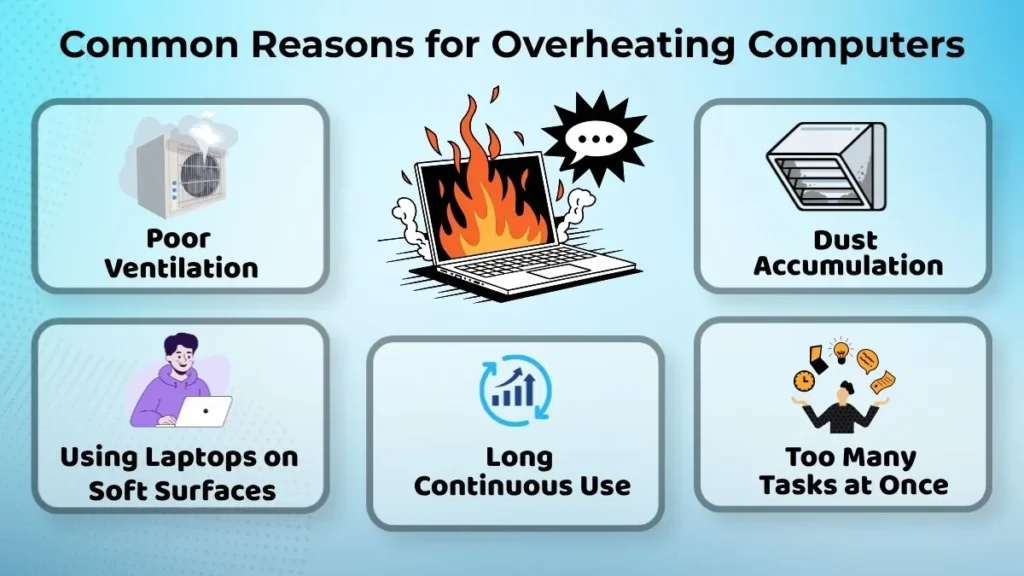
Poor Ventilation
The computer requires enough space around its ventilation openings to allow hot air to escape and air to circulate.
For instance, the desktop tower should not be placed in enclosed spaces such as cabinets, and laptops should not be rested on uneven or small surfaces that may block the airflow. There must be space surrounding the computer in order for it to control its temperature.
Dust Accumulation
Dust is an insulator, and a layer of it on the inside of the computer can impact airflow.
Periodically cleaning it and eliminating dust buildup is critical for reducing the possibility of computer overheating.
Operating Computer on Soft Surfaces
Laptops that are used on beds or sofas can have their cooling mechanisms physically blocked by the bedding or furniture.
This reduces the laptop’s capacity to release heated air by obstructing its bottom vents. Using the laptop on a desk or another flat, hard surface is a safer option.
An Enhanced Duration of Continual Use
An extended period of intensive computer use can increase heat generation, especially when the processor or graphics hardware is under heavy load.
It is normal for the machine to heat up when performing tasks like gaming or video rendering, but it is crucial to periodically shut it down and let it cool.
Performing Too Many Activities at Once
The computer may get overloaded if too many browser tabs are open and too many programs are operating at once.
For instance, one might have a video call open, a couple of Chrome tabs, music playing, and some other heavy-duty apps running in the background. The PC may begin to overheat if it lacks the capacity to do all of these duties with efficiency.
A simple way to reduce the workload is to close unnecessary apps and tabs.
Effects of Computer Overheating
Running a computer at excessively high temperature can have various effects.
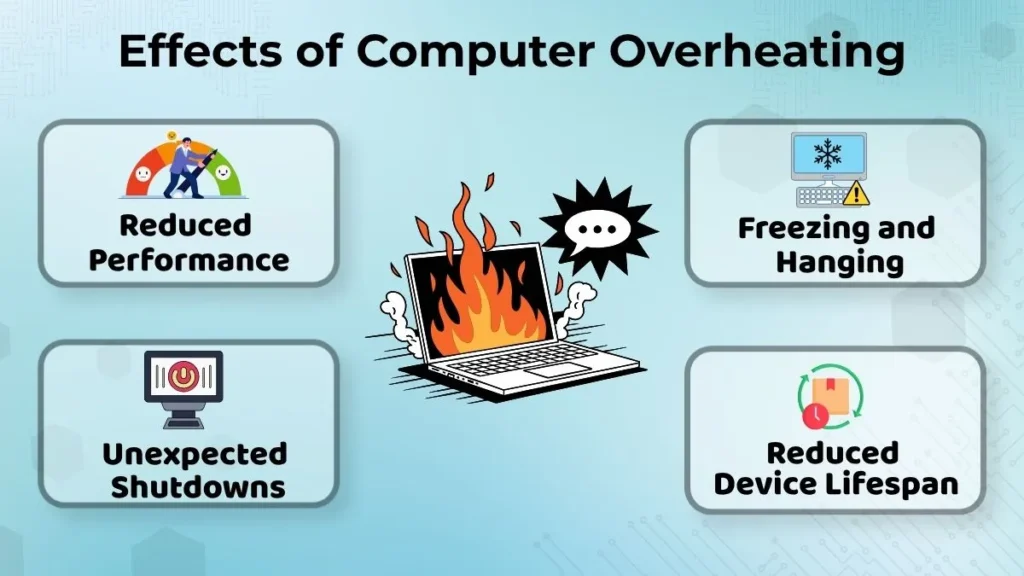
Reduced Performance
One of the most apparent effects of a computer overheating is its lower performance.
This may be noticeable when applications take longer to launch, the system becomes less responsive, and even basic operations take more time. Sometimes, the CPU runs at a lower performance to prevent the temperature from rising, hence slowing the whole system down.
Freezing and Hanging Problems
Computer components that operate at too high temperature can fail.
As a result, one might experience freezing and hanging of certain applications or the whole system. If such incidents occur often, it is a sign that the computer runs too hot.
Unexpected Shutdowns
A computer can simply power off when it gets too hot.
Even though such behavior is inconvenient, it is often a protective mechanism to prevent the processor from getting damaged.
Reduced Device Lifespan
Frequent and long-term exposure to high temperatures can make the computer’s components degrade prematurely.
Repeated exposure to excessively high temperature can increase wear on computer components over time.
How to Avoid Computer Overheating
The best way to avoid computer overheating is by preventing it from happening in the first place.
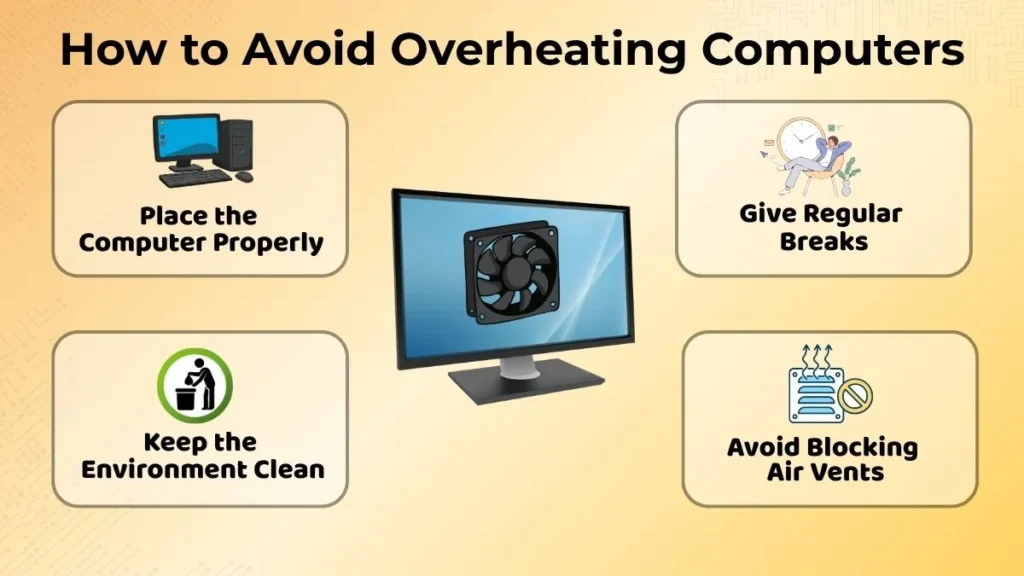
Place the Computer Properly
Setting the computer on a level, dependable platform is essential.
Most laptops tend to overheat when placed on a bed, whereas desktop computers need enough space to let the air circulate properly.
Maintain a clean environment
The accumulation of dust can result in the computer overheating.
It is a good idea to remove the dust from the computer’s vents every once in a while. In case one does not feel confident enough to do that, they might want to contact a professional.
Give the Computer Regular Breaks
If the computer has been operating for an extended period, it might need a break.
Apart from being beneficial for the computer, taking short breaks every 2-3 hours is good for one’s eyes and posture.
Avoid Blocking Air Vents
Before placing the device on a particular surface, identify the location of the vents and ensure that nothing would block the airflow.
Do not place papers, clothing, or other objects that could obstruct the vents on or near the laptop.
Daily Habits That Help Reduce Heat
There is no need to perform elaborate computer maintenance rituals to ensure the machine does not overheat.
Instead, close the applications that are no longer needed, and avoid using too many resource-draining programs at once. Furthermore, make sure that the workspace is organized and that the laptop has access to free space around it. When performing intensive tasks, avoid launching any unnecessary applications.
Common Beginner Mistakes That Cause Overheating
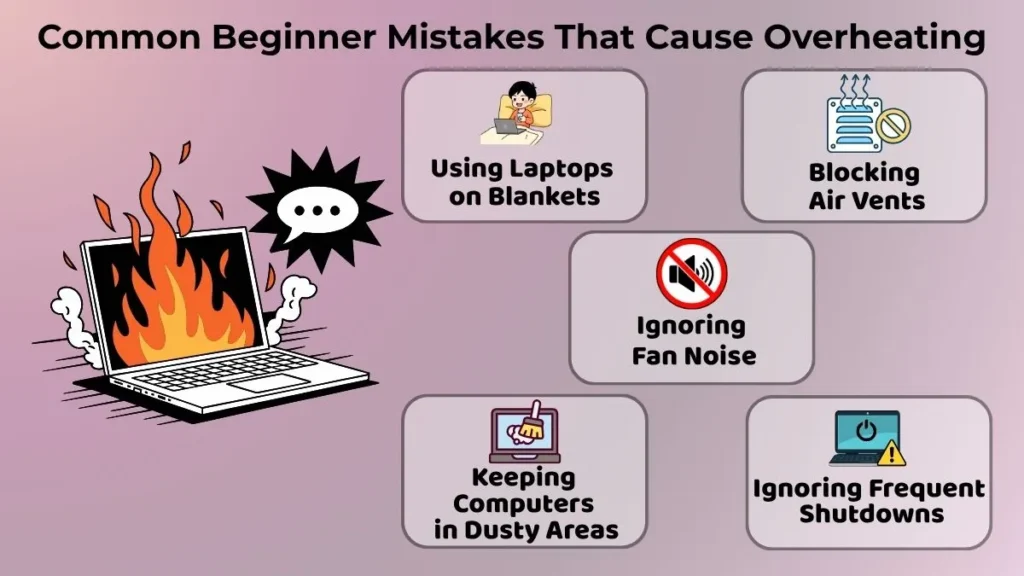
Many common mistakes that can cause computer overheating are easy to recognize.
For example, some tend to place their laptops on blankets or other soft surfaces, such as a bed, block the vents, ignore unusual fan noise, leave their computers in a dusty environment, or continue to use the device even when it regularly reaches excessively high temperatures. Another prevalent mistake is to consider the frequent or continuous automatic shutdowns as normal and stop trying to investigate the cause.
When Should You Seek Professional Help?
It is essential to understand that although many minor issues that cause a laptop to overheat can be resolved at home, some require advanced technical knowledge to be resolved. Ask for professional assistance if:-
- The computer continues to reach excessively high temperatures
- The computer suddenly shuts down for no apparent reason
- The computer always overheats regardless of the circumstances
In such cases, it is best to contact a professional who can determine whether the issue is related to the fan, internal dust buildup, or another hardware-related problem.
Why Understanding Overheating Is Important?
Many new computer owners overlook the importance of ensuring that their devices do not overheat. Furthermore, they may blame software problems for performance issues while overlooking the possibility that computer overheating can cause to behave unusually or shut down unexpectedly. Preventive measures are relatively simple and can greatly reduce the risks. Understanding how a laptop can overheat and what steps can be taken to avoid dangerous temperatures is essential for ensuring the device’s longevity. Moreover, such measures are an integral part of standard laptop maintenance.
Conclusion
Computer overheating is a common problem that many people may not recognize. A laptop generates a significant amount of heat during normal operation, but its internal components may malfunction if the temperature begins to rise. Fortunately, most of the preventive measures are relatively simple, and a laptop owner only needs to remember a few simple guidelines.
- The laptop should always be placed on a solid and stable surface.
- Make sure that airflow is not obstructed, which would impede the vents’ ability to cool the device.
- The workspace should also be kept clean and organized.
- The laptop should not be used for resource-heavy tasks if unnecessary background processes are running.
- Pay close attention to the warning signs, such as unusual fan noise, sluggish performance, freezing, and unexpected shutdowns.
For new laptop owners, understanding how computer overheating works is an essential part of the learning process.