
Basic Computer Troubleshooting Steps Every Beginner Should Know
Introduction
When you use your computer, sometimes you can face problems such as a program might stop working, the internet might not work, etc. If you are new to computers, such situation can be frustrating or scary.
The good thing is that not every problem means your computer is broken. A lot of problems can be easily solved in few minutes. It is better to understand what is wrong and fix it step by step rather than worrying or trying useless stuff.
This is what troubleshooting is all about. In this article you will learn what computer troubleshooting is, why it is important for beginners and the basic steps to follow when your computer does not work right.
What Is Computer Troubleshooting?
Computer troubleshooting is finding the cause of a computer problem and trying solutions until it is fixed. It is like solving a puzzle. You look at what’s happening currently, try to figure out what might be causing it and perform simple solutions one at a time.
The good thing about troubleshooting is that you do not have to be a computer expert. A lot of problems have simple causes, like a loose cable or a setting that was changed by mistake. If you learn how to find these problems you can save yourself a lot of time and stress. It is mostly about being patient, paying attention and using logic.
Why Basic Troubleshooting Skills Are Important?
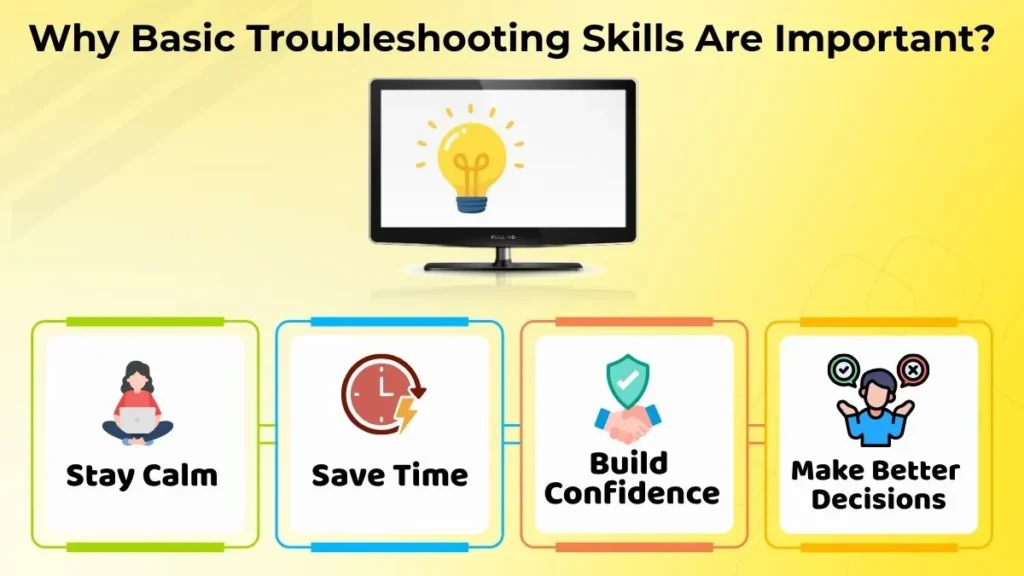
Knowing some troubleshooting skills can make using a computer much easier. One of the things about it is, that it helps you stay calm when something goes wrong rather than thinking the worst.
Basic troubleshooting can also save you time. A lot of problems can be fixed in just a few minutes without taking your computer to a repair shop.
Another good thing about troubleshooting is that it makes you more confident. Every problem you solve on your own teaches you something about computers. Over time you will be more comfortable in handling technical issues instead of avoiding them.
Importantly troubleshooting helps you make good decisions. It will teach you how to perform actions that can help in solving problems in a careful and organized way.
First Step: Stay Calm and Observe the Problem
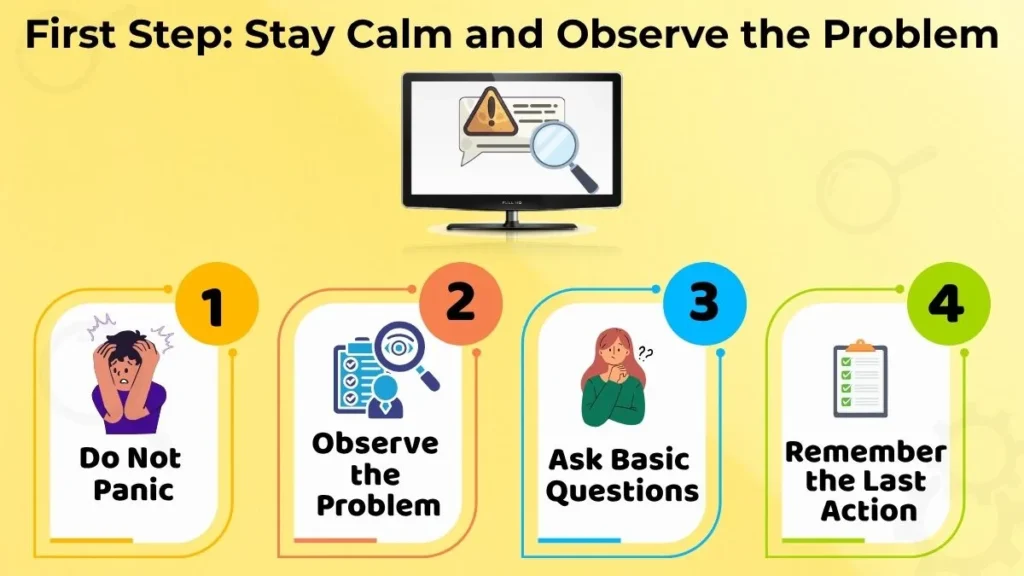
Do Not Panic
When your computer stops working it is easy to think that something serious is wrong. A lot of problems are temporary and can be fixed with simple steps.
If you panic and start changing things or installing programs without knowing what is wrong you might make things worse. Staying calm will help you think clearly and avoid making silly mistakes.
Let us take a look at what is going on.
Before doing anything, first ask yourself some questions.
For example:
- What exactly is not working with the computer?
- Did the problem with the computer start all of a sudden or did it happen gradually over time?
- Is the whole computer affected or is it one application that is not working?
- Can you still use the mouse and the keyboard?
These may appear basic and simple, but they may provide you with ideas and greatly simplify the process of determining what is wrong with the computer.
Think about what was the last action you did, before the problem started.
For instance did you:
- Install a program on the system?
- Connect a printer, a keyboard or a USB drive to the computer?
- Download a file from the internet to the computer?
- Change any system settings on the computer?
Sometimes even a small change can help explain why the problem with the computer appeared.
Remembering what you did recently can help you find the solution to the problem with the computer a lot faster.
Basic things to try when you are having trouble with the computer
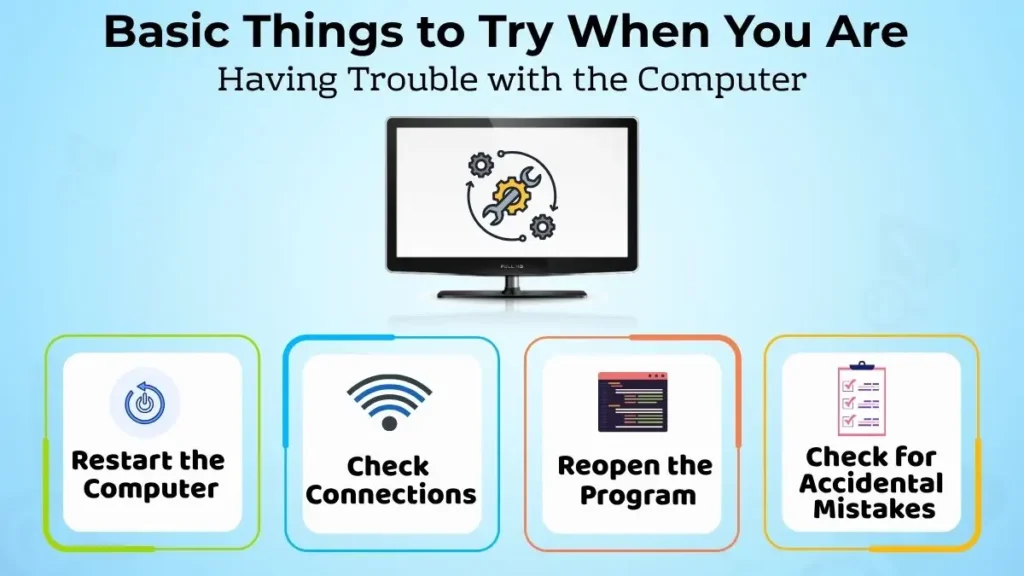
Restart the computer.
You have probably heard people say “try restarting the computer”.
It may sound too simple. In these kinds of conditions, it really does work most of the time.
Restarting the computer clears up errors refreshes the things that are running and gives the computer a fresh start.
If the computer has become slow or an application has frozen or something is not responding properly restarting the computer should usually be the thing you try.
Check the connections to the computer.
Sometimes the issue is not with the computer itself. It is with something that is connected to it.
Take a moment to check the computers:
- Power cables
- Laptop charger
- Monitor cable
- Internet or Wi-Fi connection
- USB devices such as a mouse or a keyboard or a printer
For example, a monitor may appear blank simply because the cable became loose or a printer may stop working because the USB cable is not connected properly to the computer.
Check for Mistakes Made Accidentally
A lot of computer problems turn out to be mistakes that are easy to overlook.
Perhaps the Wi-Fi was turned off accidentally. The computer volume is muted, or the Caps Lock key is enabled when you are entering a password.
It is always worth checking these possibilities before you look for more complicated solutions to the problem with the computer.
Reopen the program that is causing trouble
If only one application is causing trouble, while everything else is working perfectly, make sure to close the program completely and open it again.
Sometimes an application freezes because of a glitch.
Restarting the application often fixes the issue without affecting the rest of the computer.
If the program does not close normally, you can wait for a few moments or use the Task Manager if you know how to use it safely on the computer.
Understanding the difference between problems and repeated problems with the computer
Not every computer issue should be treated in same way. A temporary problem with the computer may appear once.
For instance, a browser might get frozen for few seconds, because too many tabs are open or a file may take longer than usual to load.
If the issue disappears after restarting the computer, there are high chances that it may never happen again.
Repeated problems, with the computer are different.
If the computer crashes every day or a program keeps closing or the same error message appears again and again there is probably an underlying issue that needs more attention.
Recognizing this difference helps you decide whether a simple fix is enough or whether further troubleshooting is needed to fix the problem.
When Troubleshooting Does Not Work
Sometimes you’ve tried all the steps but the problem still remains.
Don’t assume your computer is permanently damaged. Some issues need knowledge, software repairs or hardware replacement.
Avoid downloading PC repair tools or changing important system settings without understanding what they do. These actions can make the situation worse.
Instead, write down any error messages, note what happens before the problem occurs, and collect as much information as possible. This makes it easier for an experienced person or technician to identify the cause of the computer problem.
Common Troubleshooting Mistakes Beginners Make
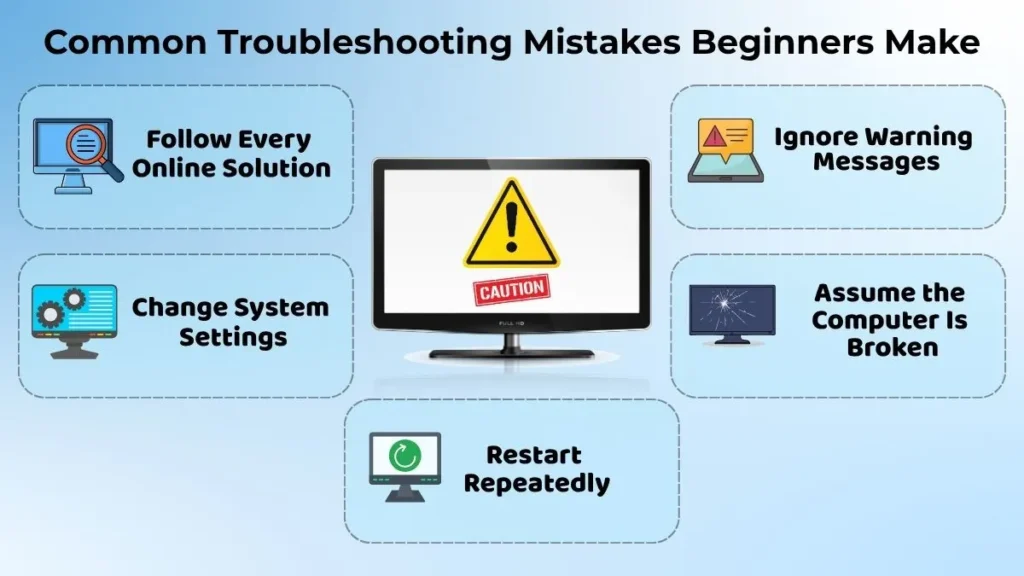
Beginners often make mistakes while trying to fix computer problems. Some common ones include:
- Following every solution found on the internet without checking whether it matches the computer problem.
- Changing system settings without knowing their purpose.
- Restarting the computer over and over without observing what is actually happening with the computer.
- Ignoring warning messages or error codes from the computer.
- Believing the computer is permanently damaged after one computer problem.
A slow and patient approach usually leads to better results than rushing through different solutions.
Simple Habits That Prevent Future Computer Problems
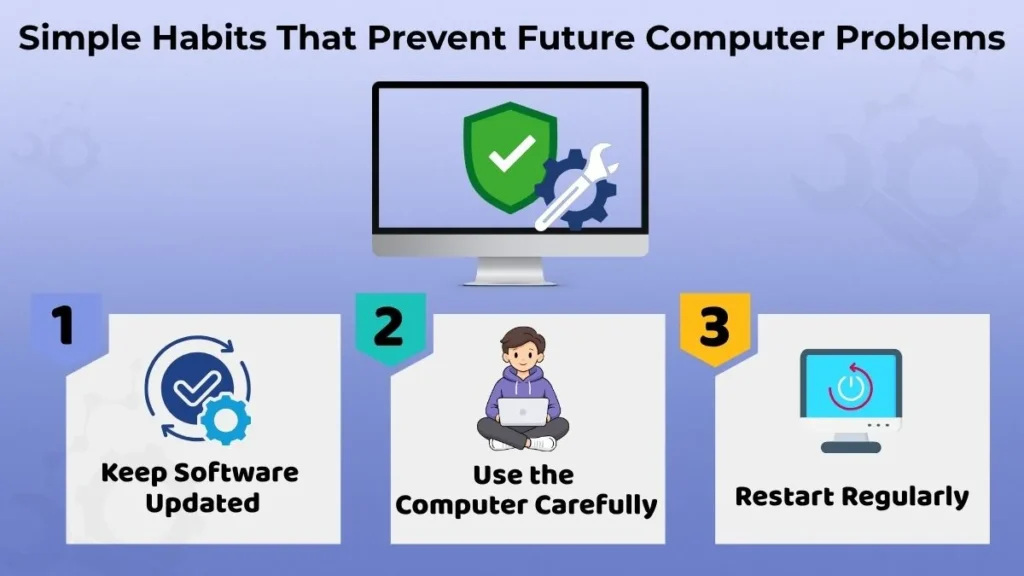
Keep Software Updated
Software updates fix bugs, improve security, and help computer programs run smoothly.
Install updates only from trusted sources so your computer stays reliable and protected from computer viruses.
Use the Computer Carefully
Avoid downloading files from websites or installing applications you don’t trust.
Think before changing important computer settings unless you’re sure about what they do. A little caution can prevent unnecessary computer problems later.
Restart Regularly
Restarting the computer once in a while clears temporary memory refreshes the operating system and helps maintain stable computer performance.
When Should You Seek Help?
Although many computer problems can be solved at home there are situations where expert help is the safest choice.
Consider contacting a professional if:
- The computer refuses to start.
- The same computer issue keeps returning after attempts to fix it.
- You notice damage, unusual smells or strange computer noises.
- Important computer files seem to be missing or are at risk.
- Basic computer troubleshooting steps no longer make any difference.
Knowing when to stop experimenting and ask for computer assistance is just as important as knowing how to troubleshoot computer problems.
Conclusion
Basic computer troubleshooting is a skill that every beginner should learn.
It helps you understand computer problems, calmly find computer solutions, and avoid unnecessary stress whenever something goes wrong with the computer.
Everyday computer issues don’t require advanced technical computer knowledge. By observing the computer problem, remembering recent computer changes, checking computer connections, restarting the computer, and trying a few logical computer steps you can solve many common computer issues on your own.
As you continue using computers, your computer troubleshooting skills will naturally improve. With patience, practice and a methodical approach you’ll become more confident in handling computer problems and know when it’s the right time to seek professional computer help.