
Common Computer Hardware Problems and Their Solutions
Introduction
Nowadays, most people use computers every single day without even realizing or thinking about the hardware inside them. This includes students who use computers for assignments and online classes, office workers who depend on them for daily tasks, and many others use them for watching videos, browsing the internet, or for chatting with friends and family.
Like every coin has two sides and every electronic device has pros and cons, the same computers can also develop issues over time.
Sometimes the system suddenly stops turning on. Sometimes the keyboard stops responding right in the middle of work. In other situations, the monitor shows a black screen or the computer starts making strange sounds that were never heard before.
Such situations might feel scary for beginners, as it seems like some major issue has occurred or the system has failed entirely.
Fortunately, most hardware problems are very minor and manageable. Usually, the problem is due to loose cables, dust buildup, overheating, or simple connection issues. Even if a user just has basic knowledge of computer hardware, it can help them to identify problems easily and avoid unnecessary panic situations.
None of the beginners need to be a computer expert, but having a basic idea of troubleshooting steps is good for everyone.
In this article, we will explore some common computer hardware problems and try to understand them with simple solutions, which will especially help beginner readers.
What Are Hardware Problems?
Hardware problems are the issues that are related to the physical or tangible parts of a computer.
In simple words, we can say when any actual part of the computer stops working properly, it is considered a hardware problem. Such issues can happen in any device such as a keyboard, monitor, mouse, speakers, cooling fan, hard drive, cables, or even inside components such as RAM or power supply units.
Hardware problems are different from software problems. Software issues are connected to application programs or the operating system, on the other hand hardware issues are connected to machine parts.
Major hardware problems are easily noticeable, because the computer starts behaving differently from usual. Some of the common signs are:
-
Computer not starting properly like before
-
Blank monitor screen appearing after start
-
Unusual loud fan noise
-
Mouse or keyboard not responding properly
-
USB devices connected through ports still not responding
Some issues are minor and temporary, while others may require professional repair. Understanding the warning signs early can help users avoid bigger problems later.
Computer Not Turning On
Possible Reasons
One of the most frustrating situations is pressing the power button and getting no response from the computer.
No lights. No sound. Nothing on the screen.
Many users immediately think the computer is completely damaged, but surprisingly, the problem is often very basic.
Some common reasons include:
-
Loose power cable
-
Power switch turned off
-
Faulty wall socket
-
UPS issue
-
Loose internal connection
-
Temporary power supply problem
This happens more often than people think. Sometimes while cleaning the table or moving the CPU cabinet slightly, a cable becomes loose without anyone noticing it.
Even a switched-off extension board can stop the computer from starting.
Basic User-Level Solutions
Before assuming the system is dead, users should perform a few simple checks:
-
Make sure the power cable is connected properly to the system
-
Try another wall socket
-
Ensure the UPS or extension board is switched on
-
Do not forget to verify that both the monitor and CPU are receiving power
-
Look for visible loose connections
In many homes, users panic for several minutes only to discover later that the main power switch was off.
Simple checking can solve the issue quickly in many situations.
Computer Overheating Problem
Common Causes
Overheating is another common issue observed in both desktops and laptops.
Computers generate heat while working. If this heat does not escape properly, the internal temperature starts increasing. With time, overheating slows down the performance of the system, and sometimes it may even damage important components.
Some common reasons that cause overheating are:
-
Irregular cleanup which causes dust buildup
-
Cooling fan issues can also cause overheating
-
Poor airflow, this also happens due to dirt
-
Blocked air vents
-
Continuous heavy usage of the computer
Let’s look into a practical example, many people keep the laptop on a bed, blanket, or pillow, while watching movies or playing games. Soft surfaces block the airflow from underneath, which causes the laptop to heat up faster.
If desktop computers are kept inside a closed wooden compartment which does not have proper ventilation, they can also overheat.
Simple Preventive Solutions
Users can reduce overheating problems by following some easy habits:
-
Keep the computer always in a ventilated area
-
Clean dust regularly from all parts
-
Avoid blocking cooling vents by using them on hard surfaces
-
Allow the system to rest after long usage
-
Use laptops on flat surfaces
Dust may seem harmless, but it actually is not. It creates serious airflow problems inside the cabinet. Even a small layer of dust around the cooling fan can affect cooling efficiency.
Regular cleaning helps the system stay cooler and perform better.
Keyboard or Mouse Not Working
Common Reasons
Keyboard and mouse problems are extremely common, especially in systems that are used for long hours daily. Sometimes keys stop working properly, or the mouse cursor freezes.
Common reasons include:
-
Loose USB connection
-
Damaged wire
-
Dust inside the device
-
Weak battery in wireless devices
-
Temporary connection problem
Wireless mouse devices often stop responding because of battery weakening.
Similarly, keyboards used during eating or long study sessions usually collect dust and tiny food particles under the keys.
Basic Solutions
Users can try these few basic troubleshooting steps:
-
Disconnect and reconnect the device by unplugging and reconnecting the cable
-
Try another USB port, sometimes the port itself may be damaged.
-
Restart the computer
-
Replace or charge batteries in wireless devices
-
Sometimes dust can create issues, so clean the keyboard and mouse carefully
Sometimes the computer just needs a simple restart and the issues are fixed immediately.
Cleaning the parts also improves performance because dirt buildup can affect key movement and mouse sensors.
Monitor Display Issues
Common Problems
Display problems are another issue many users face regularly.
Sometimes the monitor stays black even when the CPU is running. While in other cases, the screen flickers a little or shows strange colours.
Some common display issues include:
-
Blank screen even after power on
-
Flickering display
-
Distorted or strange colors
-
Dim brightness (this one’s a common misunderstanding)
-
No Signal message appearing
These problems can arise due to loose cables, power connection issues, or incorrect display settings.
User-Level Checks
Before directly assuming the monitor as damaged, users can perform some basic checks for confirmation:
-
Make sure the monitor power cable is plugged in properly
-
Check whether the monitor is responding by checking its indicator light
-
Verify that the HDMI or VGA cable is connected tightly
-
Confirm that the CPU is not the damaged component and it is running
-
Adjust brightness settings, sometimes it gets low automatically through some settings
A very common misconception is when the HDMI cable gets loose from behind the CPU cabinet.
In this situation, many users assume that the monitor has failed completely but the real issue turns out to be just a loose connection.
Slow Computer Due to Hardware Issues
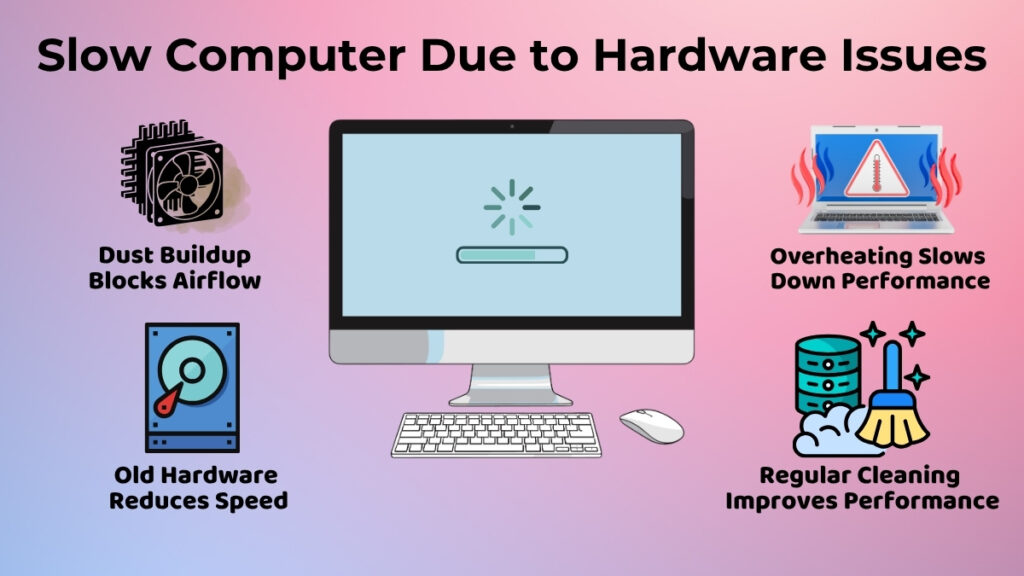
A slow computer is a common problem that many people face. Sometimes software issues can make the computer slow. Problems with the hardware are a big reason why the computer does not work well.
When the computer gets too hot, it slows down automatically to protect the parts from damage. If there is a lot of dust inside the computer, it can block airflow and reduce cooling efficiency.
Old computer parts, such as hard disks, can become slower over time while opening files, programs, or the operating system.
You can make your computer work better by doing some things like:
-
Keeping the computer clean
-
Making sure the air can move around
-
Restarting the computer regularly
-
Not letting the computer get too hot
-
Checking the connections
For example, if you use your computer every day in a very dusty environment, it can become slow because the fans and air vents get blocked. If you clean the computer regularly it will work smoothly.
Unusual Noise from Computer
If your computer starts making unusual noises, you should not ignore them. It is normal to hear the fans. Loud noises can mean that there is a problem with the hardware.
Some examples of these noises are:
-
The fan is really loud
-
You hear clicking sounds
-
There is a rattling noise
-
You hear vibrating sounds inside the computer
A lot of the time dust is what is causing the fans to not work right. If there are loose parts inside the computer, they can create vibrating sounds. If your desktop computer is making a buzzing sound after a few months it might just need to be cleaned. If you do not do anything about these problems they can get worse. This can damage the hardware.
USB Devices Not Detected
Sometimes USB devices like keyboards, printers, flash drives, and external hard disks do not work when you plug them in.
This can happen because:
-
The connection is not tight
-
The USB port is not working
-
There is dust in the port
-
The cable is damaged
-
The device is not compatible
You can try reconnecting the device, using another USB port, restarting the computer, or cleaning the port carefully.
Importance of Early Problem Detection
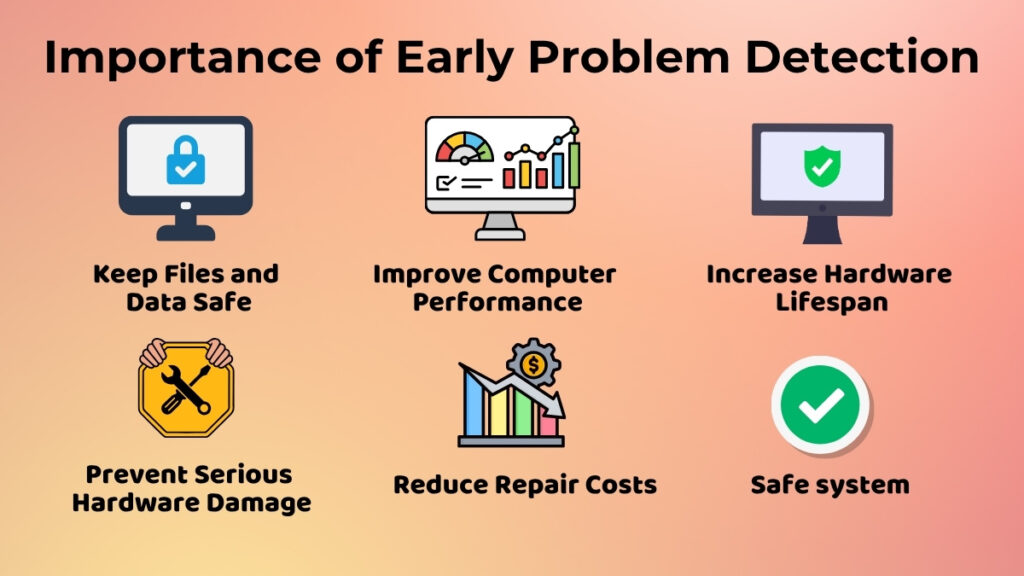
It is very important to identify hardware problems early. If you ignore hardware problems, they can become worse.
If you find problems early you can:
-
Stop the hardware from getting seriously damaged
-
Not have to spend much money to fix it
-
Make the computer work better
-
Make the hardware last longer
-
Keep your files and data safe
If you check the computer regularly and do some maintenance it can work well for a long time.
When Hardware Problems Need Professional Help?
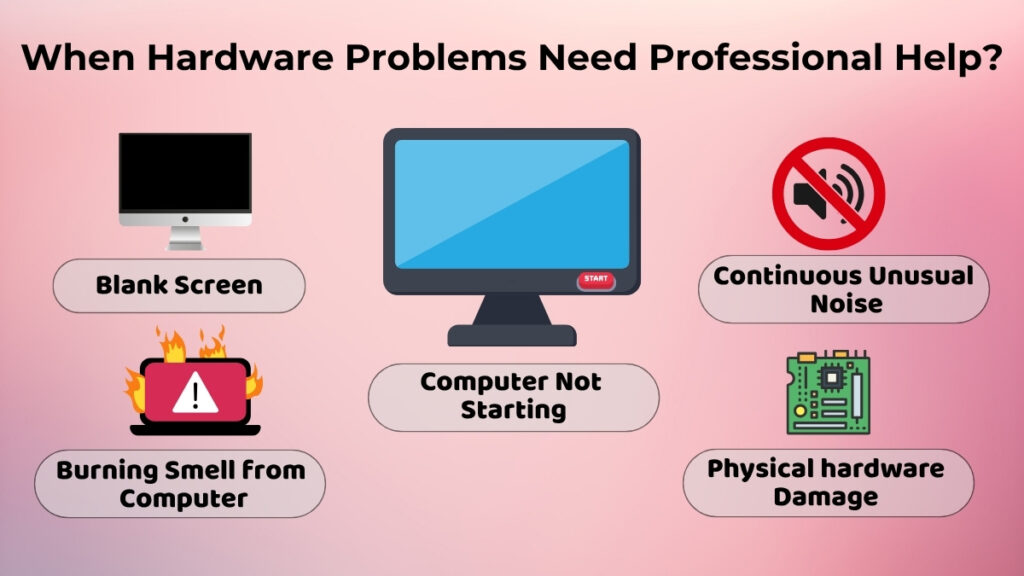
Some problems with the hardware need a professional to fix. You should get a technician to help you if:
-
The computer will not start
-
You smell something burning
-
You can see that the computer is damaged
-
The screen is blank
-
You hear noises all the time
If you try to fix the problem yourself without knowing what you are doing you can make it worse.
Conclusion
Hardware problems are a normal part of using a computer. Issues like overheating, unusual noises, or having problems with the display or USB connections are things that happen a lot when you use a computer. The good thing is that a lot of these problems can be fixed by doing some maintenance and checking the computer regularly.
If you know a bit about the hardware you can handle problems with the computer without getting too stressed. Simple things like cleaning dust, ensuring proper airflow, and checking cables can make the computer work better and last longer.