
How to Identify Hardware Issues in a Computer
Introduction
Computers play an essential role in our day-to-day activities because we use them for many activities including learning, work, communication, entertainment, and even browsing the internet. Because we always use computers, there are chances that some issues may arise while using them. There are times when the computer becomes slow, crashes, restarts on its own, and even stops responding to us.
If you notice anything strange about your computer, the first thing you need to do is diagnose what the issue is. Many beginners have trouble figuring out whether the issue is with their hardware or software. As a result, they might take steps that aren’t necessary or even miss important warnings.
For instance, if a computer system starts shutting down frequently, some people would attribute this fault to the operating system. However, this could be due to overheating or other components in the computer system. Failure to address these issues over a period of time could lead to adverse effects on the performance of the computer system.
Awareness of hardware issues helps users to detect potential problems early and understand what steps should be taken immediately. This increases their confidence in dealing with hardware issues in their computers without getting panicked.
Fortunately, recognising hardware problems doesn’t necessarily need any complex technical skills. There are many problems that can be identified simply by observing computer behaviour.
In this article, you will get to know how to detect hardware problems in a computer.
What Are Hardware Issues?
A hardware problem refers to a problem that involves the physical components of a computer.
To put it simply, when a computer component such as the keyboard, mouse, screen, cable connections, or anything else does not work as it should, that is known as a hardware problem.
This may be easily detected while using the computer. For instance, the computer could fail to respond, display abnormalities, or function incorrectly.
Examples include:
- The keyboard might fail to type correctly.
- The screen could have no visual display.
- The mouse pointer could be frozen.
- The computer may not boot up.
Unlike problems that arise due to software problems temporarily, hardware problems will persist until the problem itself is solved.
That is why the user needs to focus on any abnormality in the system rather than ignore it.
Hardware Problems Users Frequently Face
There are various indicators that can assist in identifying computer hardware problems.
Early identification of these signs helps to prevent future complications in addition to improving computer safety.
Computer Not Powering On
A clear indication of a problem with hardware is when the PC fails to start up even after pressing the power button.
In this situation, the system would not respond at all.
Signs to be aware of may include:
- The system has no lights.
- The CPU and fan are silent.
- Nothing can be seen on the display.
- When the power button is pressed, nothing happens.
For instance, if the computer fails to work even after ensuring that the power is plugged in, the problem could lie in either the hardware component inside the computer or its power source.
The mentioned problem should never be overlooked since it may be an indication of a significant hardware failure.
Frequent System Freezing or Restart
A computer that keeps freezing or restarting for no obvious reason could also mean there is something wrong with the computer’s hardware.
Symptoms of computer freezing include:
- The cursor freezes
- Applications not responding
- Screen freezes
In the same way, frequent restarts of the computer will also affect your work and cause problems with the stability of the computer system.
For example, let us assume that you are writing an essential document and your computer restarts several times automatically. This might be due to overheating or any other problem related to hardware issues.
Signs Related to Input Devices
Hardware issues might also display in input devices like the keyboard and mouse.
Because these devices are often used, users typically become aware of issues immediately.
Keyboard Issues
Hardware issues with keyboards can show in various ways.
Typical indications include:
- Some keys quit functioning
- A slow typing response
- Keys not responding properly
- While typing, incorrect letters show
For instance, when typing notes or documents, certain letters might fail to appear even after repeatedly pressing the keys.
This might suggest issues with the keyboard or its connection.
Dust accumulation and physical damage may also be factors that impact keyboard efficiency.
Mouse Issues
Problems with the mouse can also signal hardware problems.
The most common symptoms can include:
- Unpredictable mouse movements
- Clicks with the mouse are not reacting properly
- The cursor unexpectedly freezes
- The mouse is frequently disconnected
For example, if the movement of the cursor is unpredictable and suddenly stops while performing work, then the problem might have to do with the mouse itself and the USB port.
These signs directly affect usability and should not be ignored.
Display and Monitor Related Signs
Hardware issues are frequently indicated by display-related problems.
Since the monitor is responsible for displaying visual output, any strange display behavior needs to be monitored closely.
Blank Screen Problem
The computer may seem to be functioning fine. However, there is nothing appearing on the screen.
Some possible signs that something is wrong are:
- The system lights switch on
- The cooling fan continues to run
However, the screen stays blank.
This may indicate a problem with:
- Monitor
- Display cable
or internal hardware associated with display.
For instance, the display system rather than the software may be the problem if the screen suddenly becomes dark while the system is still operating.
Flickering or Distorted Display
Display problems can also appear as flickering or blurred images.
Some of the usual symptoms are:
- There are frequent flickers on the screen
- Strange color patterns
- Blurred display
- On the screen, lines are visible
In case you experience screen flicker when viewing any video clips or software application, it could mean a possible problem with the monitor or any other graphics hardware.
It could be more serious in the future if ignored.
Overheating as a Hardware Issue Indicator
One of the most frequent symptoms of computer hardware problems is overheating.
It is natural that computers generate heat when running. However, too much heat affects both the efficiency and safety of the hardware.
Symptoms that can be observed are:
- Computer overheating
- Noise from fans
- Slow performance
- Unexpected shutdowns
For instance, if your laptop gets too hot when you use it normally, this might imply an inadequate cooling process within the device.
Long-term overheating may lead to damage to some critical hardware parts.
Strange Sounds from Computer
Strange noises coming from the computer could also mean there are hardware problems.
Computer systems usually make minimal noise except for the fan used to keep it cool. However, strange or loud noises coming from the computer should not be ignored.
Here are some examples:
- Noisy fan
- Clicking noise
- Vibrations
- Strange noises inside
For example, if you can hear strange clicking noises coming from inside the CPU cabinet, it could be an indication that one of the parts is not working correctly.
These sounds often act as warning signs of hardware issues.
USB and External Device Detection Issues
There are cases where an external device may fail to connect because of hardware complications.
Some of the symptoms include:
- The USB device cannot be identified
- Frequent disconnections
- Non-response by the USB port
For instance, when you plug a USB memory stick into your computer and it fails to function even though it can work on another computer, the problem could be the connection.
These complications could affect external devices such as printers, keyboards, flash drives, and other peripherals.
How to Differentiate Hardware vs Software Issues
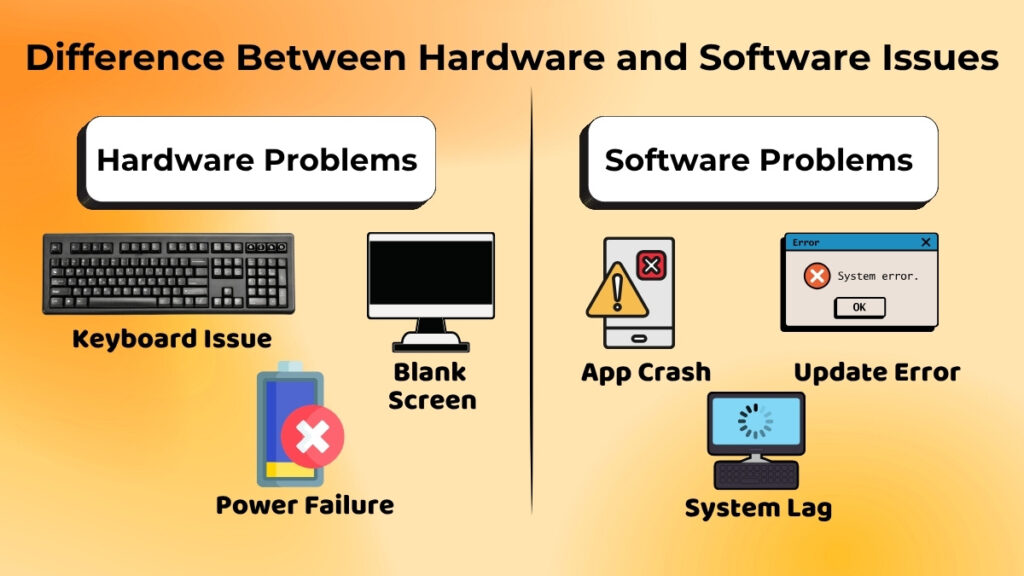
The difference between hardware problems and software problems needs to be understood.
Typically, hardware problems are associated with physical elements and persist continuously unless resolved.
Some common examples are:
- Non-functioning keyboard
- Blank screen
- The computer doesn’t turn on
- Internal noises
The problems with software are often temporary, and the problem may be solved simply by restarting, upgrading, or re-installing the software.
For instance:
- Temporary crashing of applications
- Minor lag in the system
- Errors after upgrading
Observations can help users distinguish between hardware and software problems.
Importance of Identifying Issues Early
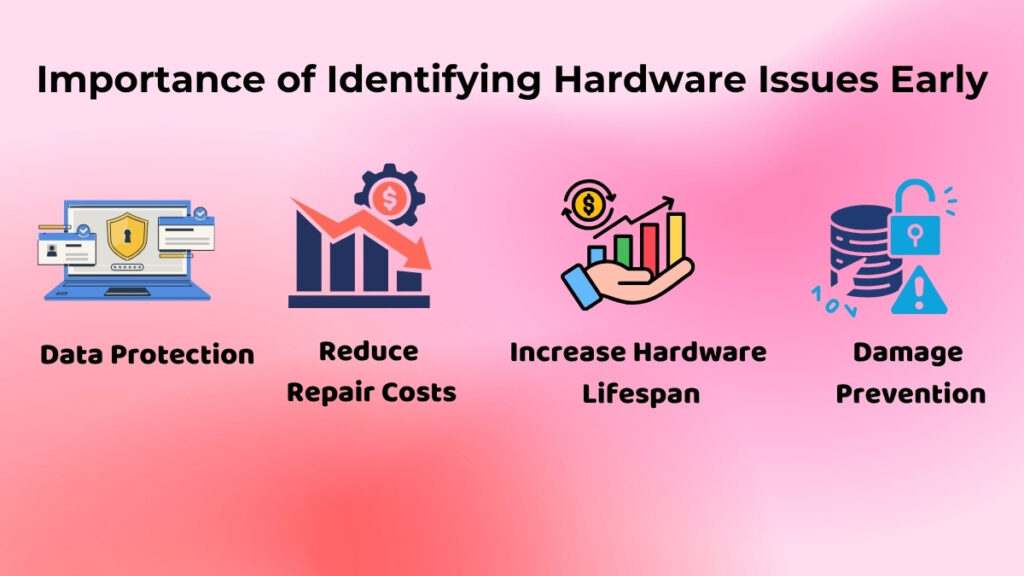
Hardware problems need to be detected early on.
Detecting problems early can offer many advantages:
- Helps in avoiding any additional harm
- Saves money on repairs
- Ensures protection of valuable data
- Increases the lifespan of the computer
In other words, early detection of overheating can prevent any major internal damage in the future.
Avoiding warning signs for an extended period of time might intensify the issue, making it costly to resolve.
Thus, it is crucial that users monitor their systems carefully.
When to Seek Professional Help
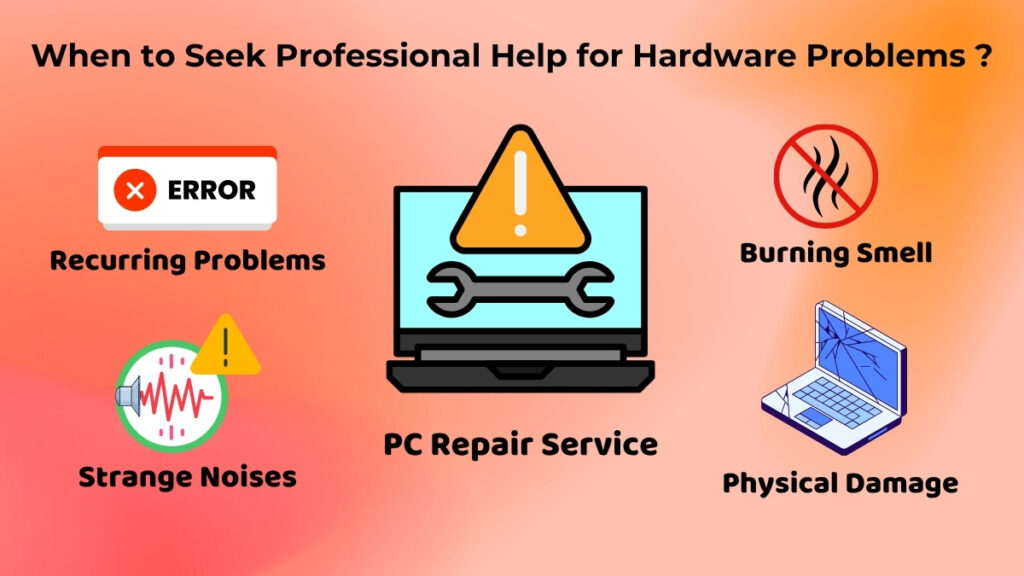
However, there are some hardware problems that need professional support.
The following conditions will force users to contact experts:
- There are indications of physical damage
- The problem keeps recurring
- The nature of the problem is not identifiable
- The computer is not working properly
For instance, if there is a burning smell from the computer, strange noises inside the computer, or the machine simply stops working, it is better to call for professional help.
Trying to fix complex hardware issues without proper knowledge may increase the damage.
Conclusion
Detecting hardware problems in a computer system is a necessary process that is particularly useful for beginner computer users who frequently interact with computers.
Users can easily detect hardware problems in a computer system by noticing symptoms like overheating, strange noises, and screen or power failures.
This not only helps prevent further damage to the computer system but also saves a lot of money.