
File Management Basics: How to Organize Files and Folders on a Computer
Introduction
Files are an essential aspect of computing. Data is often kept in a file format for all actions, including creating documents, saving images, downloading videos, and keeping study materials. Almost everything that we do on a computer is stored in the form of files and folders.
Initially, it appears easy to handle files since they are just a few. However, after some time, the number of files begins to grow. Students may have their assignments and notes, office employees may have their documents and presentations while ordinary users might accumulate photos, videos, and other data. As a result, finding a particular file can become difficult.
A majority of beginners store their files in places randomly or give confusing names to files. After that, when they require those files, it becomes very difficult for them to find them due to the lack of organization.
It is beneficial for beginners to learn about file management because it will help keep the computer organized and simplify their everyday work. Proper file management skills are helpful for saving one’s time and making computer usage more effective.
The article explains what file management is, the difference between files and folders, common file locations, and how to organize your files.
What Is File Management?
File management refers to the process of organizing, storing and managing files.
Simply put, file management ensures that the user’s data is stored properly and can be accessed easily whenever needed.
Files and folders help to manage information. While a file refers to data, a folder refers to a storage area for files. Proper management of files will ensure that important information is easily found.
An example in daily life is a bookshelf. In the context of files and folders, the books are considered files while the shelves represent folders. In the event that the books are not placed in the right order, searching for one becomes hard. Placing the books orderly on the shelves will make it easy to access them.
Therefore, proper file management will help users access their files easily.
What Is a File?
A file is defined as a set of information stored in the computer.
A file can contain different types of information depending on the type of file. Some files may hold texts while others may hold images, videos, music, or any other form of information.
Some examples of files are:
- Text documents to be typed
- Photographs
- Video clips
- Music and audio samples
- Educational resources and lectures
For instance, when a student makes a project report, the document is made into a file. Again, a picture is created as a file when it is taken using a mobile phone and then transferred to a computer.
A file stores information that can be retrieved whenever needed.
In absence of files, there is no way one can save his or her work or store information.
What Is a Folder?
A folder is a storage location that helps to organize and store files.
Instead of keeping the files in one place, folders enable users to keep the relevant files in one place only. This helps in better management of information.
For instance, a student can make different folders for assignments, notes, projects, and study material. In the same way, the user can create different folders for photos, videos, and personal files.
The difference between file and folder is very easy:
- A file contains information
- A folder contains files
The purpose of folders is to reduce confusion and provide a systematic way to store data.
The significance of folders rises with the quantity of files.
Common File Locations on a Computer
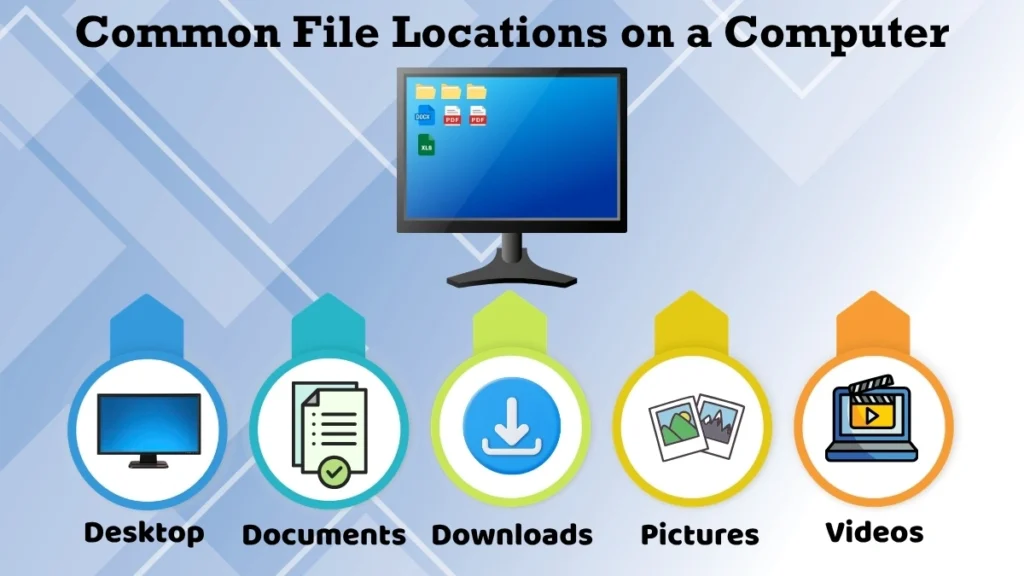
The majority of computers include common areas where users may conveniently store and retrieve files.
Desktop
The desktop is the main window that displays when the computer is switched on.
It is common practice for people to store important files and folders on their desktops as they can be easily reached. Icons, documents, and folders that get used regularly are stored there.
But having too many files stored on the desktop makes the desktop messy and unmanageable.
Thus, it is recommended that important and regularly used things be kept on the desktop.
Documents
The documents folder is generally used to store written documents and personal documents.
Assignments, reports, notes, letters, and many other document-type files can be found in this folder.
Since the documents folder is meant for documents only, it helps the user in organizing their written material.
Downloads
Downloads folder is used for storing files that are downloaded from the internet.
Any document, picture, program, or other form of material that users download is automatically saved in this specific folder.
As time goes on, the downloads folder tends to get filled up with various files. So it is important to keep this folder organized by moving files to respective folders.
Pictures and Videos
Pictures and Videos folders are used for storing media files.
Most pictures, screen shots, and images are stored in the Pictures folder, while video files are kept in the Videos folder.
Organizing media files in their respective folders helps the users find them easily and keeps them organized.
Basic File Management Actions
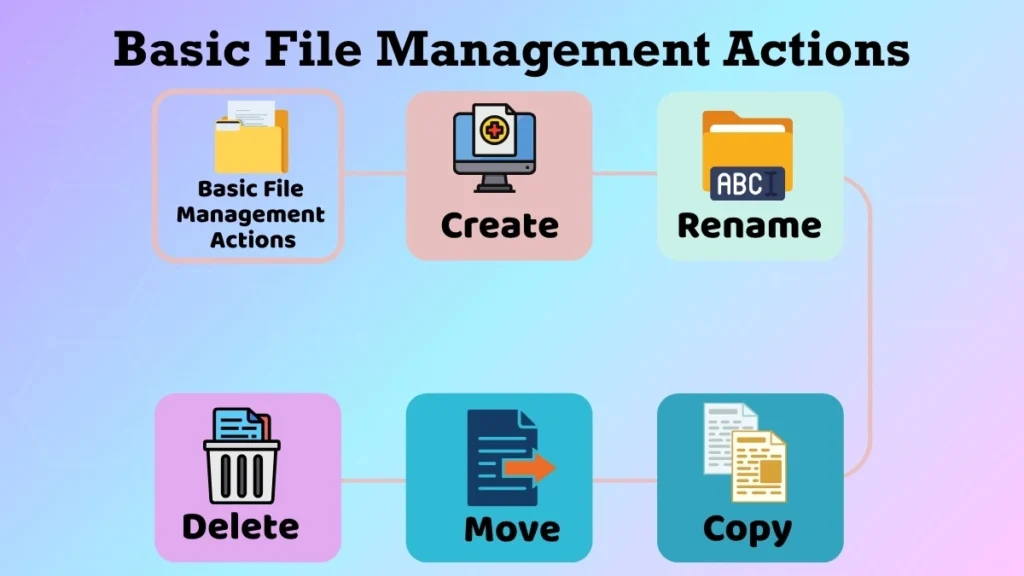
Effective file and folder management is made possible by various kinds of essential tasks.
Creating Files and Folders
The user can create any number of files or folders when required.
Separating folders on the basis of their category makes it easy to keep things organized.
For instance, rather than keeping all the study material in one place, a student can create separate folders for each subject.
A folder must be named properly in order to identify it easily in the future.
Renaming Files and Folders
File renaming refers to changing the name of the file or folder.
File names that are clear and understandable allow users to know what is inside the file without having to open it.
As an illustration, a file name “Science Project Report” will be more understandable compared to “Document1”.
This practice saves time in searching for information.
Copying and Moving Files
Copying means that there will be created another copy of the file without removing the original file to its current place.
Moving involves relocating the file from one place to another.
A good illustration of how copying works is the process of creating a photocopy of a document. This process is much like copying a file because the original and the duplicate of the document exist.
Moving of the file means transferring the document from one room to another.
The difference between copying and moving is important for users to handle their data properly.
Deleting Files Safely
Delete refers to the process of removing unused files.
The majority of computers do not erase the files immediately after the delete command is issued. Rather, these files are sent to the Recycle Bin or a similar area.
It ensures an extra layer of protection since mistakenly deleted files can sometimes be recovered.
Prior to deleting a file, one must ensure that it is not useful anymore.
Importance of Organizing Files Properly
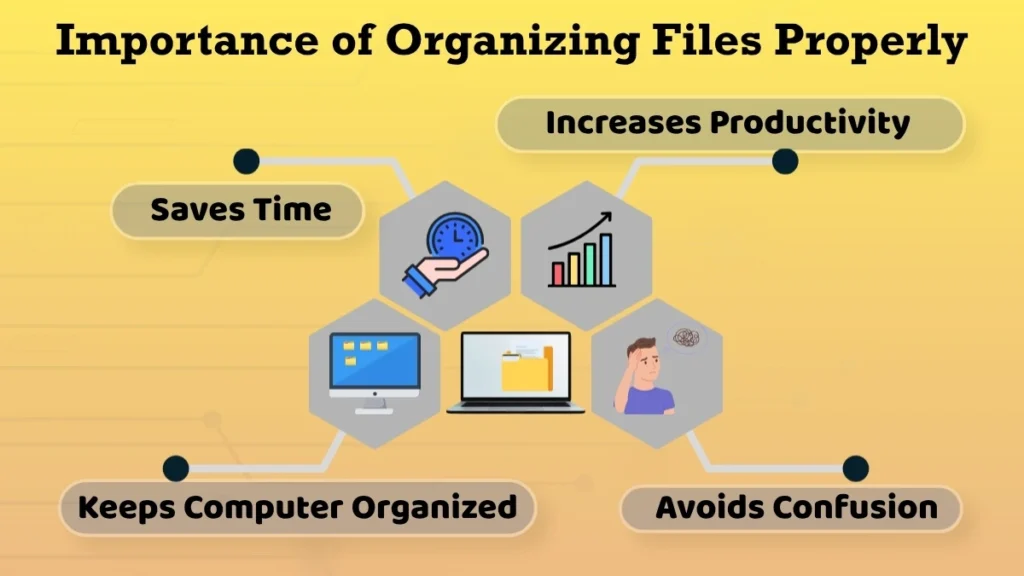
There are various benefits to organizing files properly.
The first one is that it saves time, since organized files are easy to locate and there is no need to look for them in different places.
Another benefit is increased productivity, since the user will not have to waste his/her time trying to find missing files and can concentrate on other activities.
Organizing files helps avoid confusion, since properly organized files are put in proper folders with proper names, which helps to find information easily.
File organization also makes the computer environment neater.
The more files there are, the more important file organization becomes.
Common Beginner Mistakes in File Management
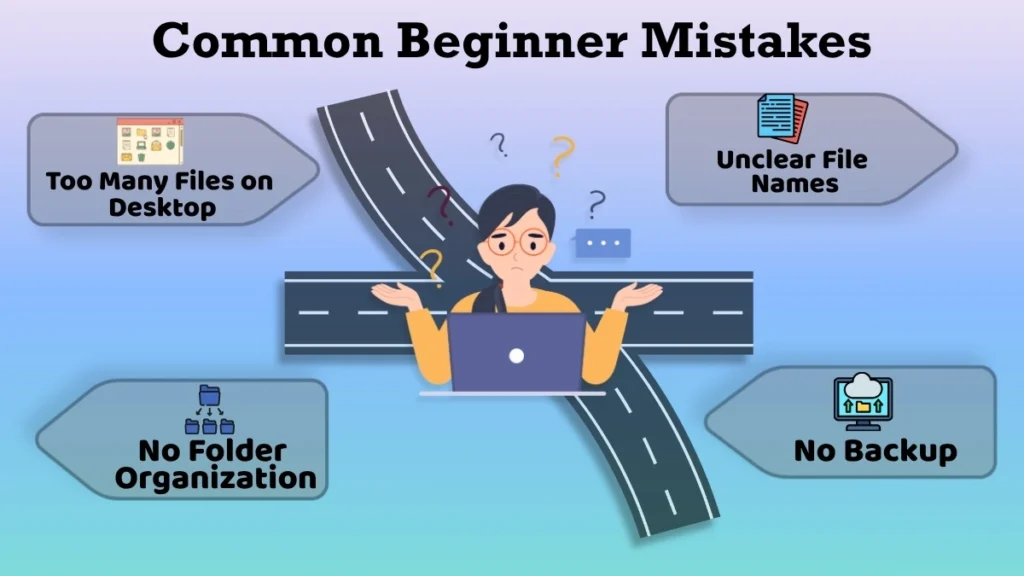
There are some common mistakes that beginners often make when handling files.
The first error is keeping all the files on the desktop. While this might be considered easy initially, it soon leads to confusion and makes it difficult to locate the files needed.
Using random or unclear filenames is another mistake made by many. Files named “New File” or “Document2” give no indication whatsoever of what they contain.
Another mistake which people commit is not categorizing their files into different folders but rather keeping all the files in one place.
Lack of backing up files is yet another mistake which many commit.
Not making these errors enables users to create good file handling practices.
File Management Tips for Beginners
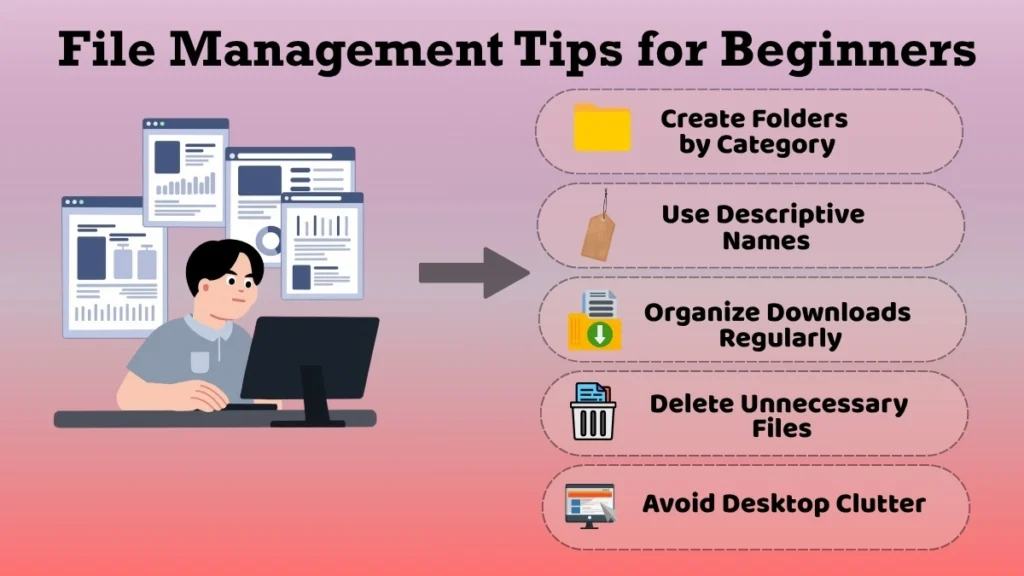
Here are some easy ways that will help you organize your files better:
- Design an easy folder hierarchy according to the categories of files.
- Choose proper and descriptive names for your files.
- Do not store important files along with the temporary ones.
- Delete files which you do not need any more.
- Organize your downloaded files from time to time.
- Develop a routine to clean up folders on regular basis.
- Avoid storing too many files on the desktop.
All these simple ways demand minimum effort yet they can greatly enhance your experience with your computer.
Conclusion
File management is an essential skill in computer operation because it helps keep files and folders organized and makes information easier to access.
Understanding the difference between files and folders, knowing common file locations, and performing basic file management tasks can make computer use much easier.
Basic file management tasks include creating folders, naming the files meaningfully, organizing downloads, and even deleting the files that are not needed.
For the beginners in computer operation, this kind of skill will help them save time, reduce confusion, and be able to organize their work.
Once learned and done regularly, file management will become very easy and will prepare the user for more complex computer skills in the future.